

Customer profiles keep each customer's tickets, devices, purchases and contact details in one place. With an email address on file, Get Repair emails them automatic updates about their repairs.
Who can do this: Anyone with access to Customers. Time needed: 1 minute.
You can also add a customer while creating a repair ticket: click New Customer in the ticket's Customer Information section.
Steps
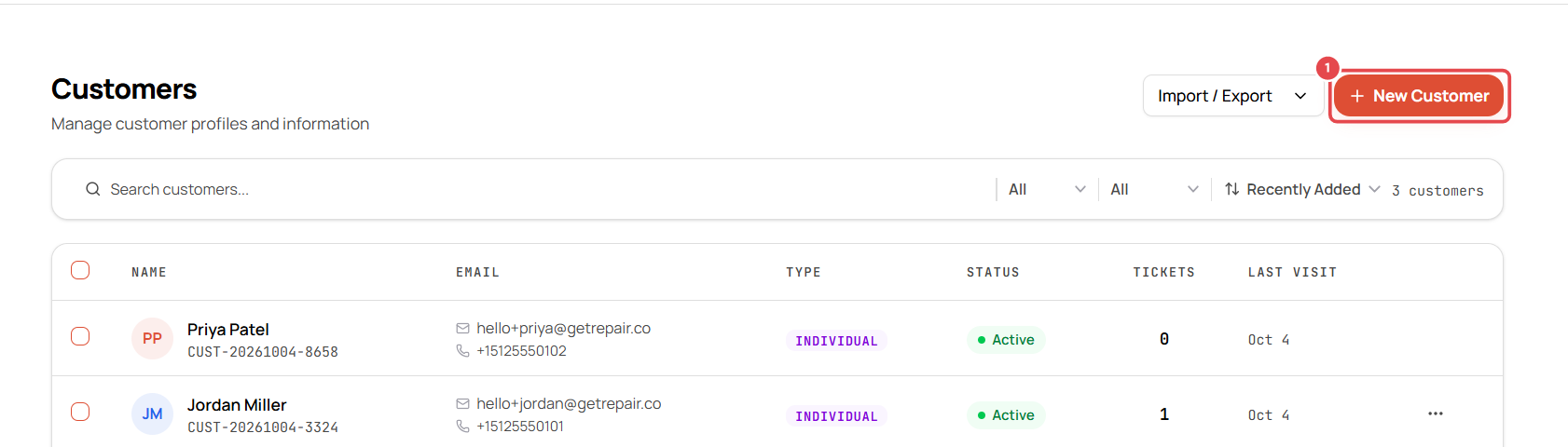
- Select Customers in the left menu, then click New Customer ①.
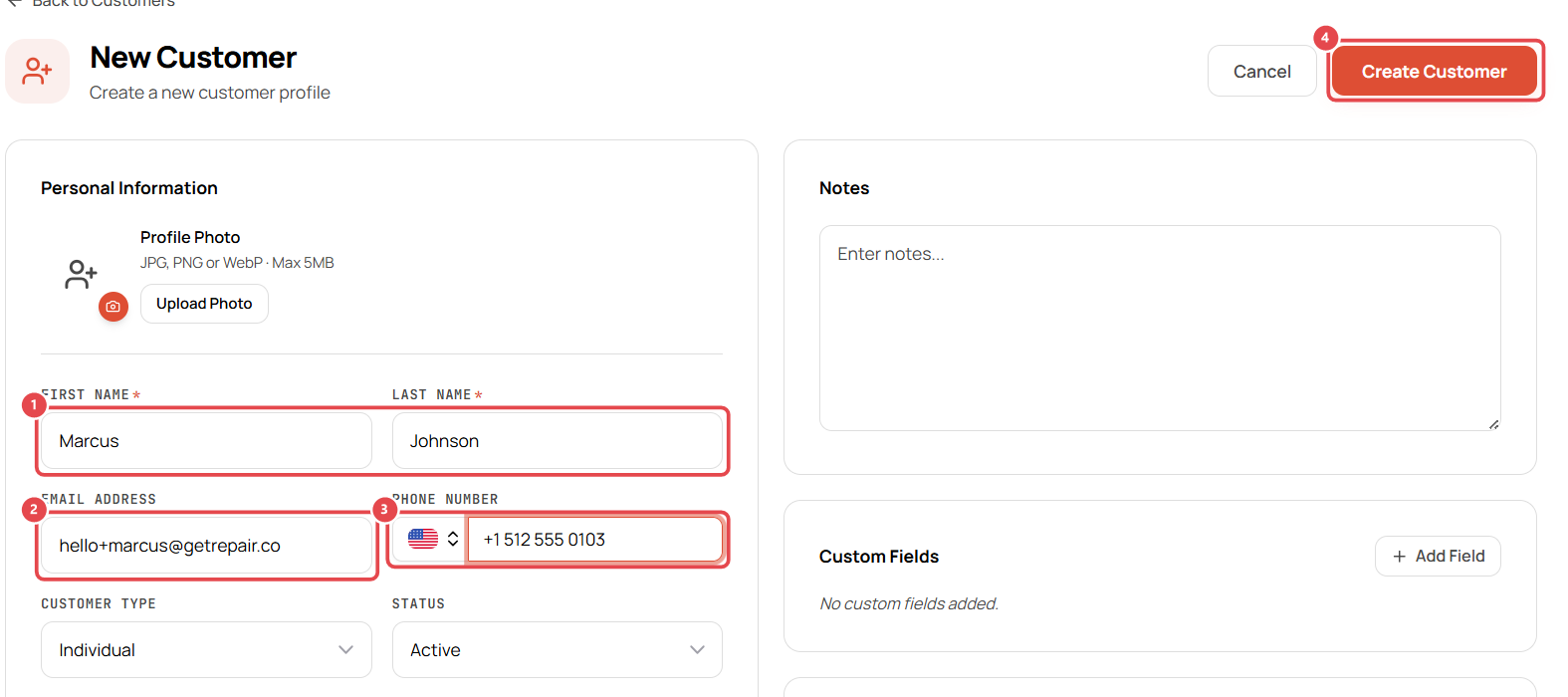
- Enter First Name and Last Name ①. Both are required.
- Enter the Email Address ②. Needed for automatic ticket emails.
- Enter the Phone Number ③. Check the country flag first: click it and choose the customer's country, e.g. United States (+1), then type the number.
- Choose the Customer Type (Individual, Business or Reseller) and Status.
- Optionally add the address, notes, custom fields and a profile photo.
- Click Create Customer ④.
The customer's profile opens, and you can find them by name, phone or email when you create tickets and sales.
Good to know
- Every customer gets an ID, e.g. CUST-20261004-3324.
- Business customers can carry a company name and tax details under Billing & Tax.
- Use Import / Export on the Customers page to bring in a customer list from your old system.