

When a part arrives dead or fails soon after fitting, raise an RMA (return merchandise authorization) to send it back to the supplier and track the credit you're owed.
There are two ways to start:
- From Faulty Items, if you've already marked units as faulty.
- With Create Manual RMA, to mark items faulty and return them in one step (below).
Create a manual RMA
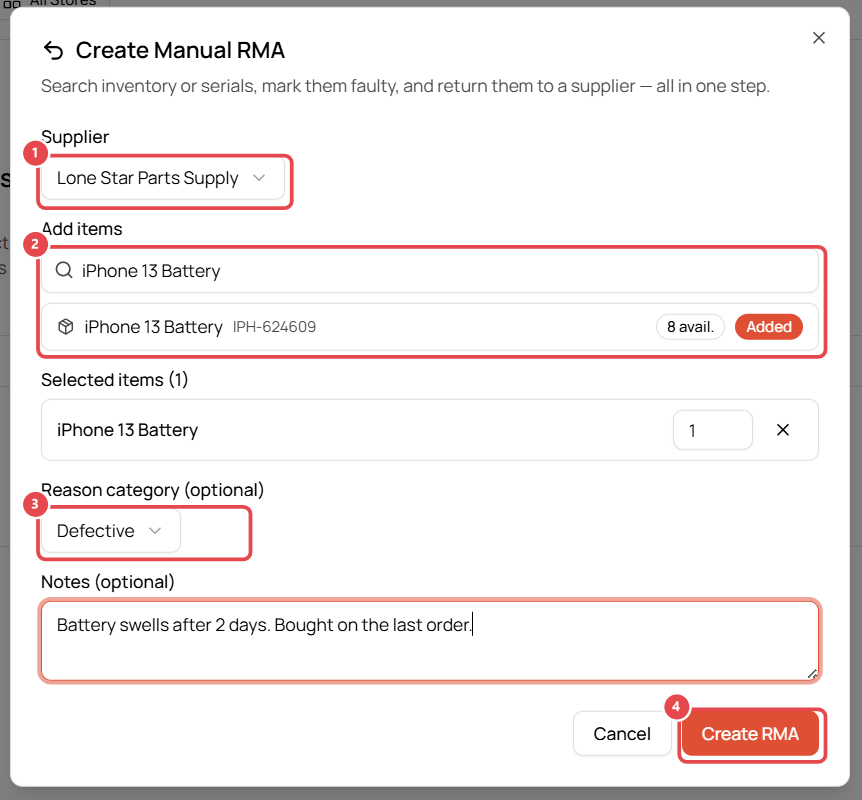
- Go to RMA and click Create Manual RMA.
- Choose the Supplier ① you bought the part from.
- Under Add items, search by product name, SKU or serial number ②, click the product, and set the quantity.
- Choose a Reason category ③: Defective, Wrong item, Damaged in transit, Overstock or Other.
- Add Notes describing the fault, e.g. Battery swells after 2 days.
- Click Create RMA ④.
Follow the RMA through
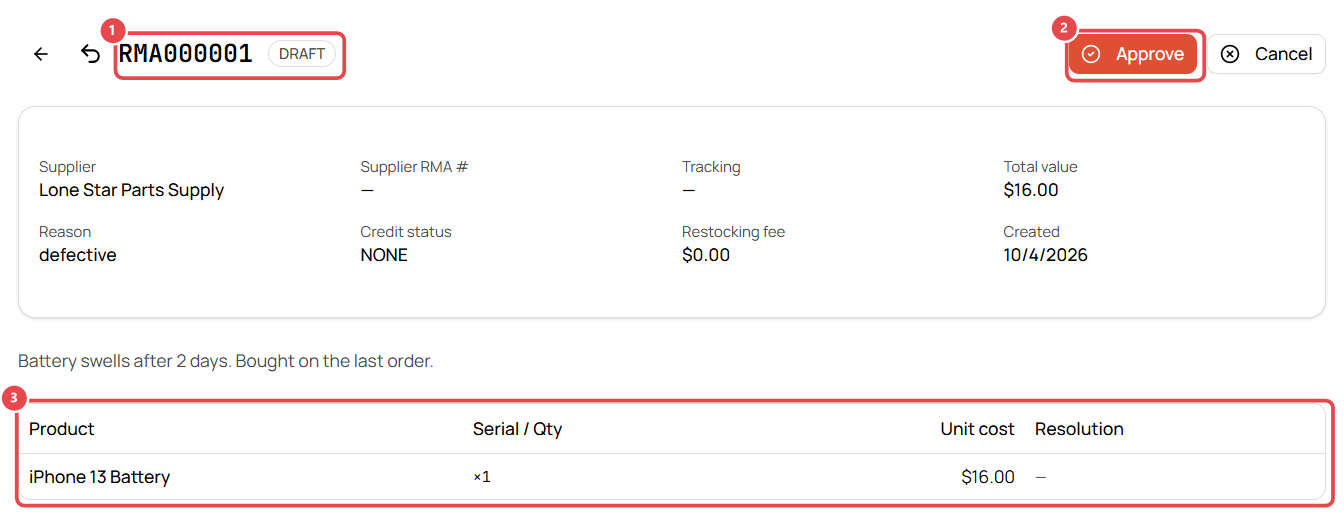
The RMA gets a number ①, e.g. RMA000001, and starts as a Draft.
- Click Approve ② when you're ready to send it.
- Add the supplier's RMA number and tracking as you get them.
- Record the credit when the supplier refunds or replaces the part. The items table ③ shows each part, quantity, unit cost and resolution.
Good to know
- The RMA list shows each return's supplier, status, value, credit and date.
- Add your suppliers first. See Add a supplier.