

Pair your Square Terminal with Get Repair and card payments taken at checkout are sent straight to the terminal. Your customer taps, inserts or swipes, and the payment is recorded on the invoice automatically.
You need:
- A Square Terminal that's switched on and connected to Wi-Fi or Ethernet.
- Access to Get Repair as an owner or admin.
- About 5 minutes.
Step 1: Get your device code in Get Repair
-
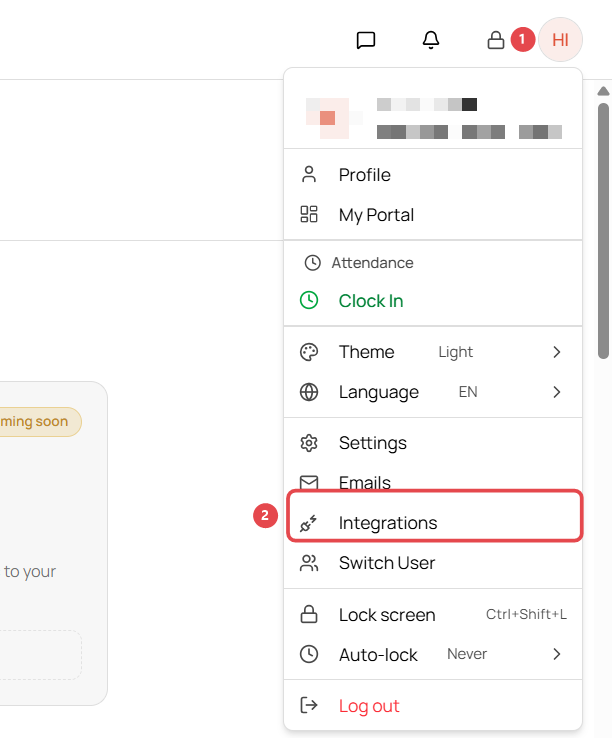
In Get Repair, click your initials in the top-right corner ①, then click Integrations ②.
-
Under Payments & POS, find Square POS and click Connect.
-
Click Connect with Square. You're taken to Square: sign in with your Square account and allow Get Repair to connect.
-
You're brought back to Get Repair, which shows a device code: a short code made of letters and numbers. Keep this screen open; you'll type the code into the terminal in Step 3.
Connect from the store the terminal belongs to. If you have more than one store, switch to that store first (top-left store name).
Step 2: Sign out of the Square Terminal
On the Square Terminal:
- Swipe left on the screen to open the menu.
- Tap Settings.
- Tap Sign out and confirm.
The terminal returns to its sign-in screen.
Step 3: Sign back in with the device code
On the terminal's sign-in screen:
- Choose to sign in with a device code. Don't sign in with your Square email and password.
- Type the device code shown in Get Repair, exactly as it appears.
- Confirm.
The terminal connects to Get Repair. That's it.
Step 4: Take a test payment
Ring up a small sale in POS, choose Card at checkout, and check that the amount appears on the Square Terminal. Cancel or refund the test afterwards.
Troubleshooting
The code doesn't work. Device codes expire after a short time. Go back to Get Repair, get a new code, and enter it straight away. Check that you typed it exactly: letters and numbers, no spaces.
I signed in with my email and password by mistake. Sign out again (swipe left → Settings → Sign out) and choose the device-code option instead.
The terminal isn't receiving payments. Make sure the terminal is online. If you have more than one store, check that you connected the terminal from the right store in Get Repair.
I want to disconnect the terminal. Sign out of the terminal (swipe left → Settings → Sign out). To use it with Get Repair again, repeat these steps with a new device code.