

A repair ticket tracks one job from check-in to pickup: who the customer is, what device they left, what condition it was in, what you're fixing, which parts you used and who's working on it.
Who can do this: Anyone with access to Repair Tickets. Time needed: About 2 minutes per device.
Before you start
You'll get the most out of tickets if you've already:
Steps
1. Start a new ticket
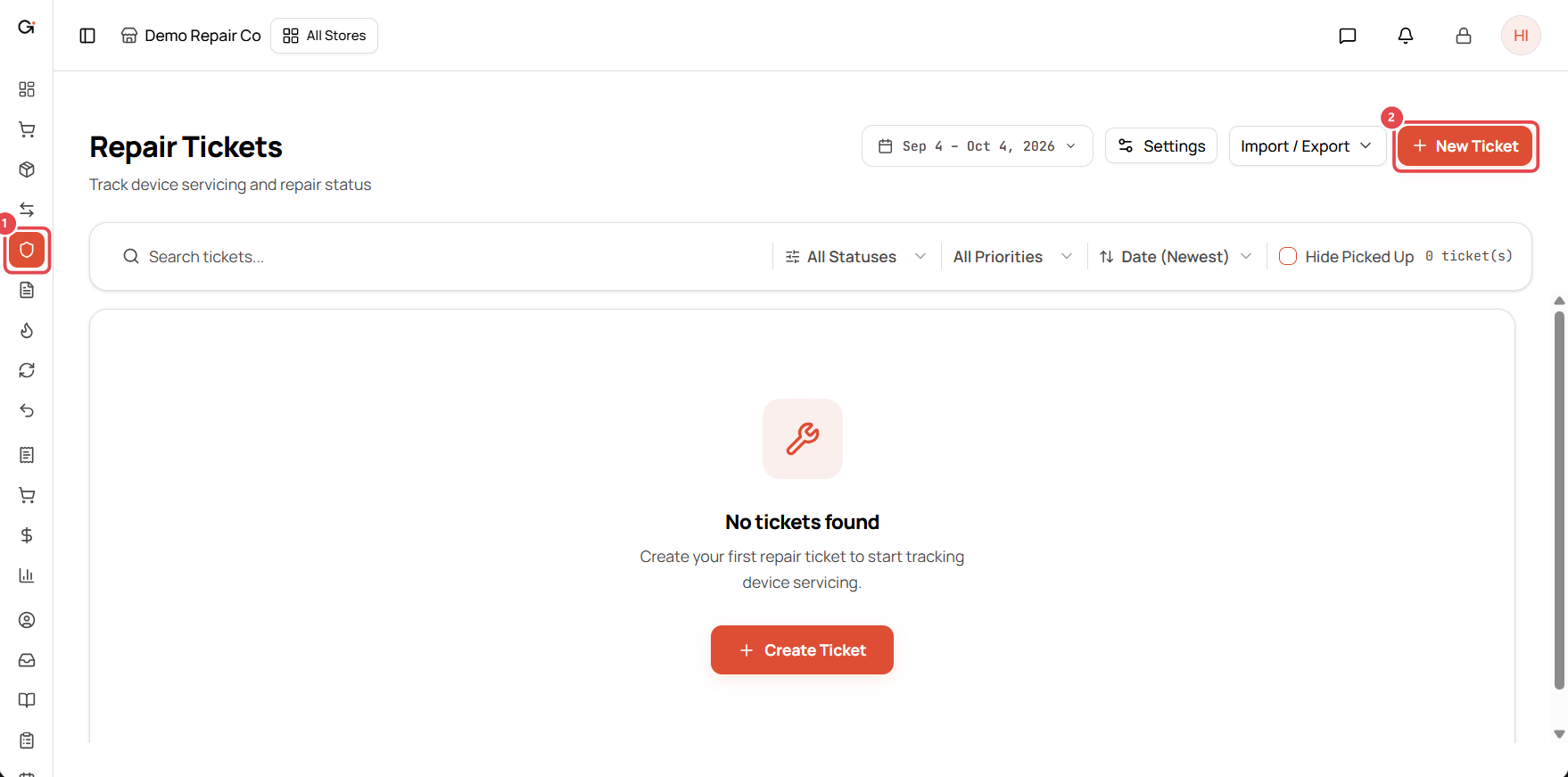
Open Repair Tickets from the left menu ①, then click New Ticket ②. You can also click New Ticket on the Dashboard.
2. Choose the customer
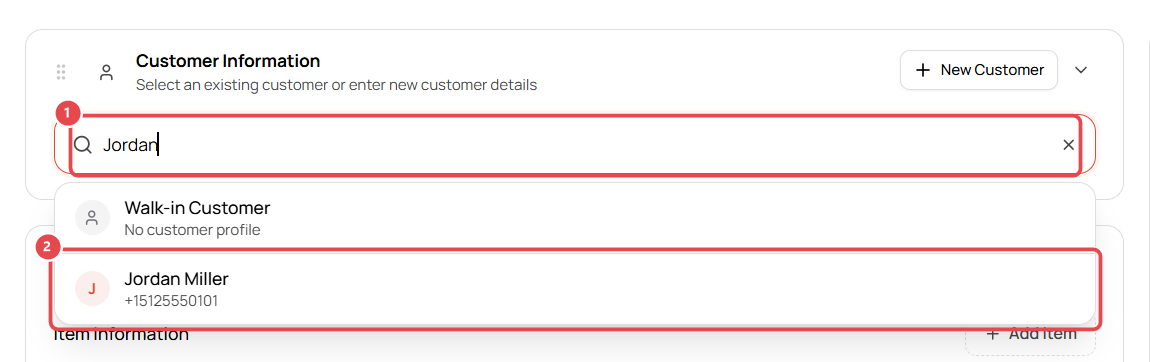
In Customer Information, start typing the customer's name, phone number or email ①, then click the customer in the results ②.
- New customer? Click New Customer to add them without leaving the ticket.
- No details needed? Choose Walk-in Customer.
When a customer with an email address is selected, they automatically get a "Repair ticket created" email when you save, and an update every time the status changes.
3. Add the device
In Device Information:
- Choose the Item Type, e.g. Phone.
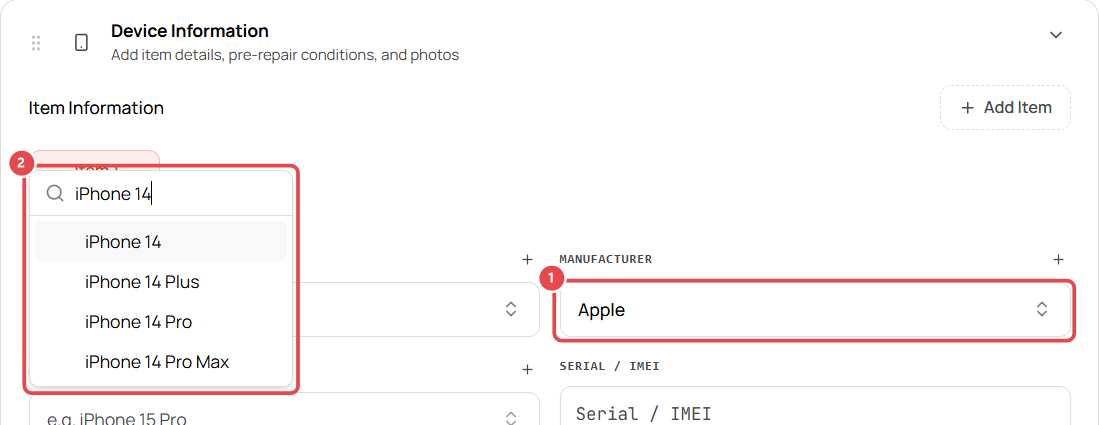
- Choose the Manufacturer ①, e.g. Apple.
- Choose the Model ②. Type to search, e.g. iPhone 14.
- Enter the Serial / IMEI. This helps you find the device in the customer's history next time.
Checking in more than one device? Click Add Item to add another device to the same ticket.
4. Record the device's condition
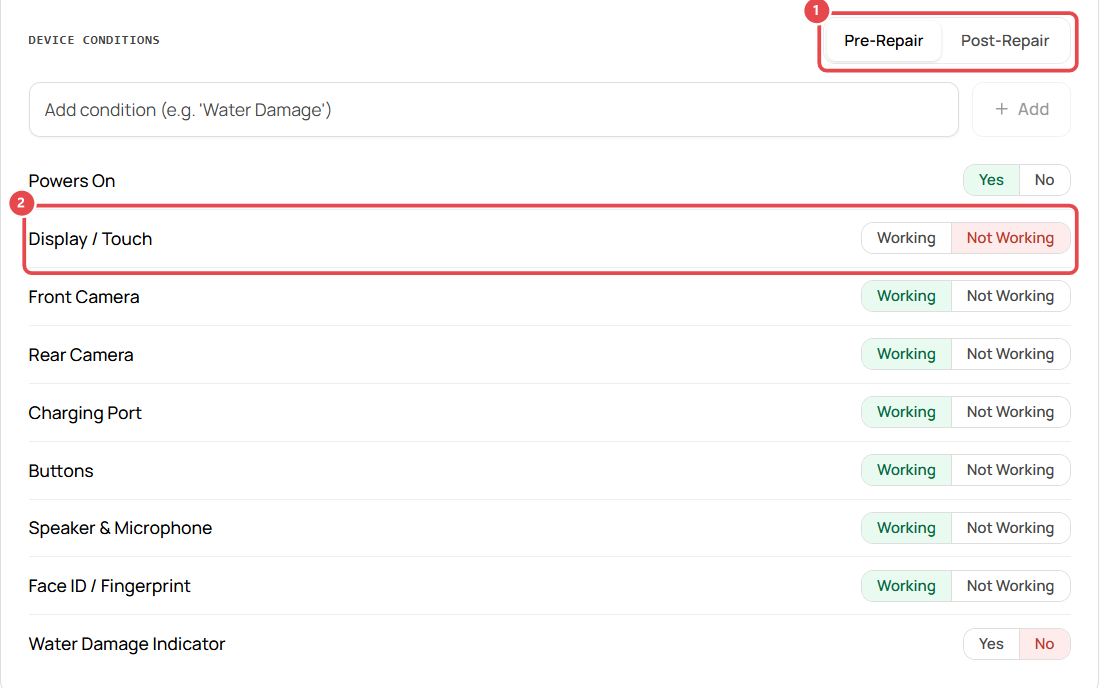
Your pre-repair checklist loads automatically. Make sure the Pre-Repair tab is selected ①, then mark each item, e.g. Display / Touch → Not Working ②. Use Add to record anything extra, such as a cracked back glass.
Recording condition at check-in protects your shop if a customer later says something was damaged during the repair. You can switch to Post-Repair to record the condition when the job is done.
5. Add the repair (labor)
In Services (Labor), click Select problem ①, then pick the repair ②. The standard price from your settings fills in, and you can change it for this ticket.
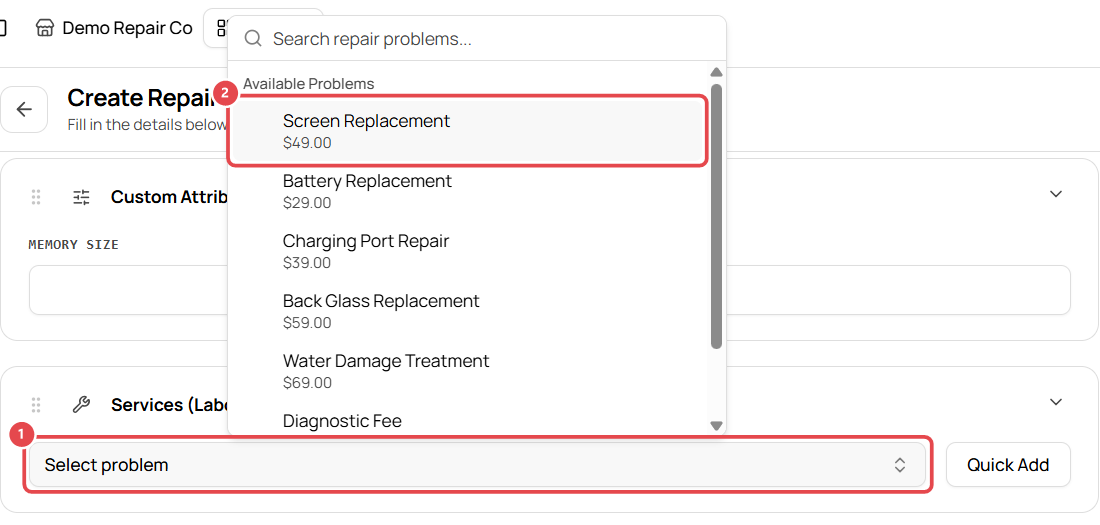
Need a one-off service? Click Quick Add.
6. Add the parts you'll use
In Parts, click Repair Part, search for the part, and select it ①. You'll see its price, SKU and how many you have in stock.
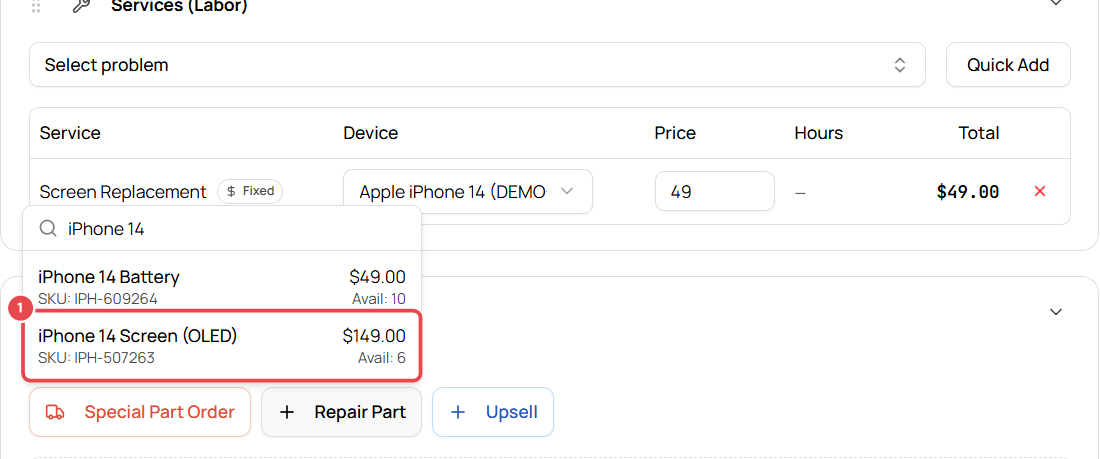
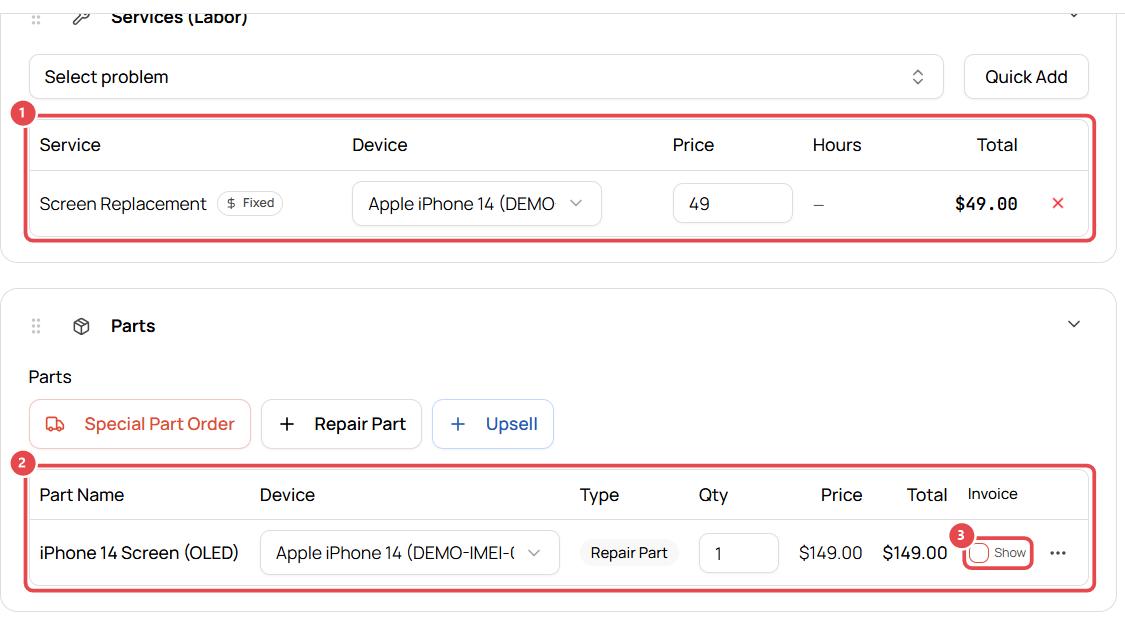
Check what you've added:
- Your service ① and part ② appear in their tables.
- Tick Show in the Invoice column ③ to charge the customer for the part. Only parts with Show ticked are added to the customer's bill.
Other part options:
- Special Part Order: a part you need to order in for this job.
- Upsell: an extra item the customer buys, e.g. a screen protector.
7. Set status, technician and due date
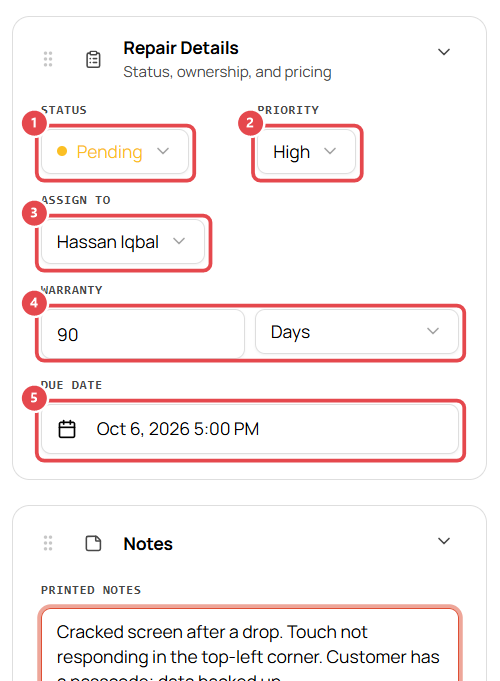
In Repair Details:
- Status ①: new tickets start as Pending.
- Priority ②: Low, Normal, High or Urgent.
- Assign To ③: the technician doing the repair.
- Warranty ④: how long your repair is guaranteed, e.g. 90 days.
- Due Date ⑤: when you've promised the device back. The customer's email shows it as the estimated completion date.
Add Printed Notes to describe the problem in the customer's words. These print on the ticket and receipt. Use Internal Notes for anything only staff should see.
8. Save the ticket
- Click Save Ticket ① to check the device in and pay later.
- Click Save & Checkout ② to take a deposit or payment now.

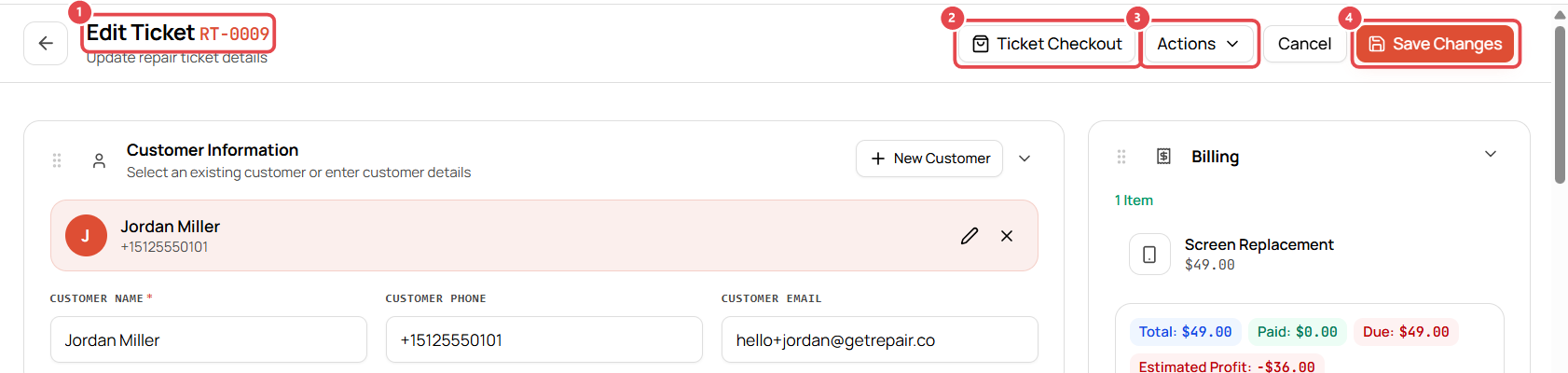
Your ticket gets a number, e.g. RT-0009 ①. From the ticket you can:
- Ticket Checkout ②: take payment.
- Actions ③: Print, Thermal Receipt, Print Label (for the device), convert To Estimate, resend the Email Confirmation, or Delete.
- Save Changes ④ after any edit.
Troubleshooting
My part doesn't appear when I search. Parts only show in the ticket's parts picker if their category is marked as a repair parts category. See Make parts appear on repair tickets.
The customer didn't get an email. Check that the customer profile has an email address. You can resend from Actions → Email Confirmation.
The part isn't on the customer's bill. Tick Show in the part's Invoice column, then Save Changes.