

Doing this once makes every new ticket faster. Your team picks a device and a repair from a list instead of typing them, and every check-in records the device's condition the same way.
Who can do this: Store owners and admins. Time needed: About 10 minutes.
All three settings are under Settings → Repairs.
Part 1: Add your repair services (labor)
Services are the jobs you charge for, such as Screen Replacement or Battery Replacement, with your standard labor price.
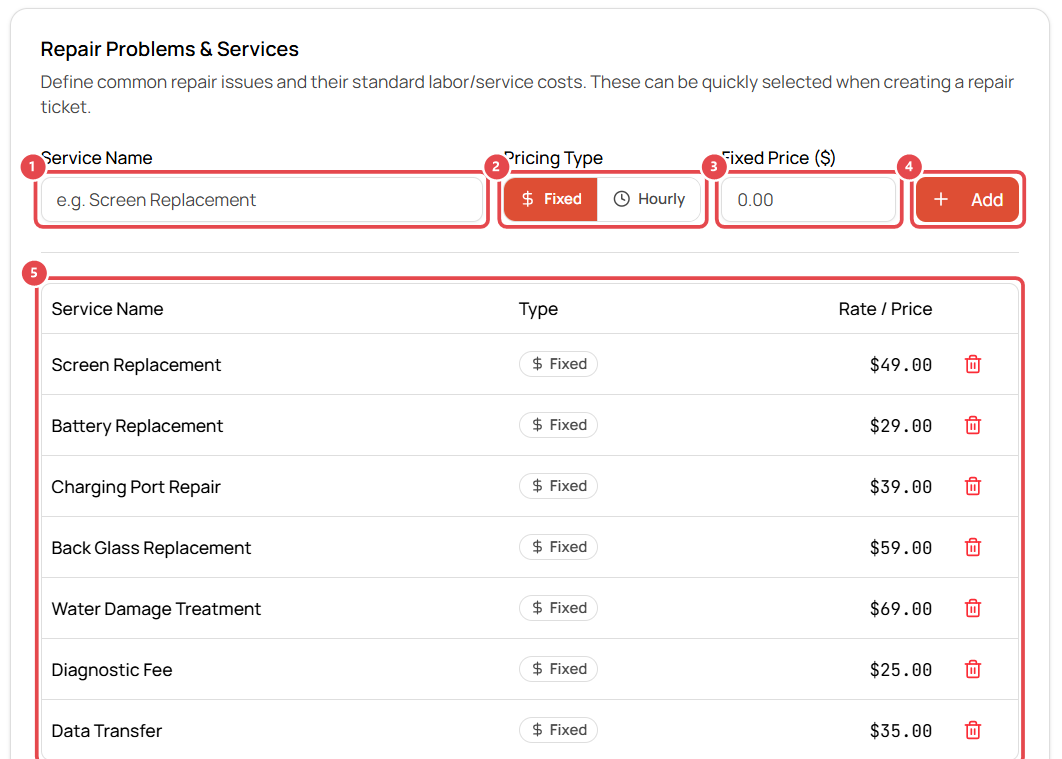
- Go to Settings → Repairs → Services.
- Type the Service Name ①, e.g. Screen Replacement.
- Choose the pricing type ②:
- Fixed: one price for the job.
- Hourly: billed by time logged on the ticket.
- Enter the price ③ (or hourly rate).
- Click Add ④. The service appears in the list below ⑤.
Repeat for each repair you offer. You can still change the price on an individual ticket.
Tip: Labor price is separate from parts. Add the part itself (e.g. the screen) from inventory when you create the ticket.
Part 2: Import device types and models from the catalog
Instead of typing every phone model, import them from the Get Repair catalog: 13 device types and thousands of models, including phones, tablets, laptops, game consoles, watches and more.
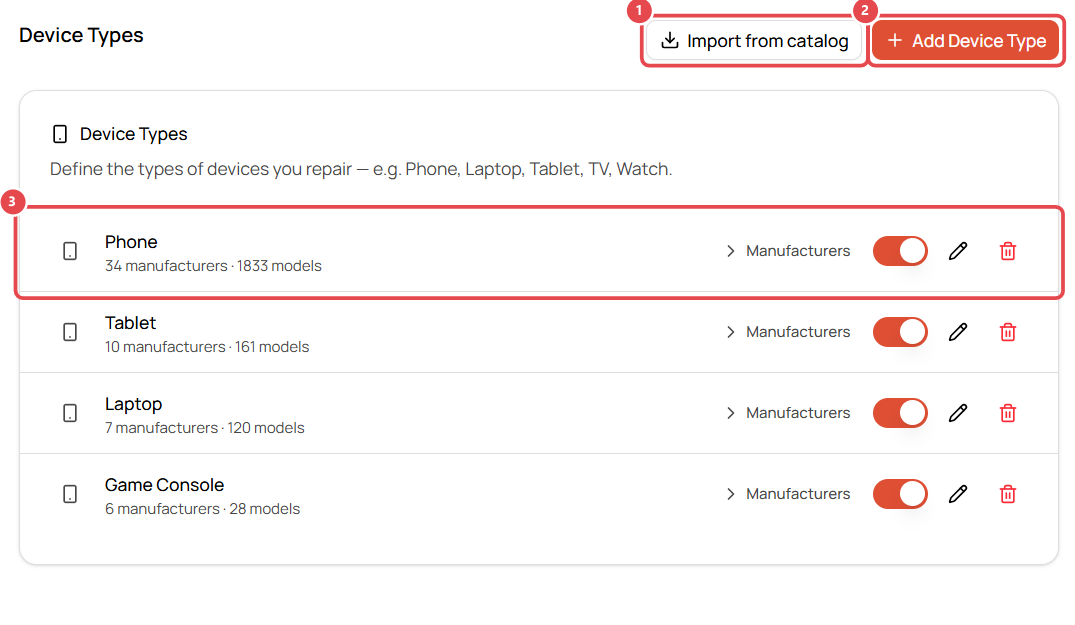
- Go to Settings → Repairs → Device Types.
- Click Import from catalog ①. (Use Add Device Type ② for something that isn't in the catalog.)
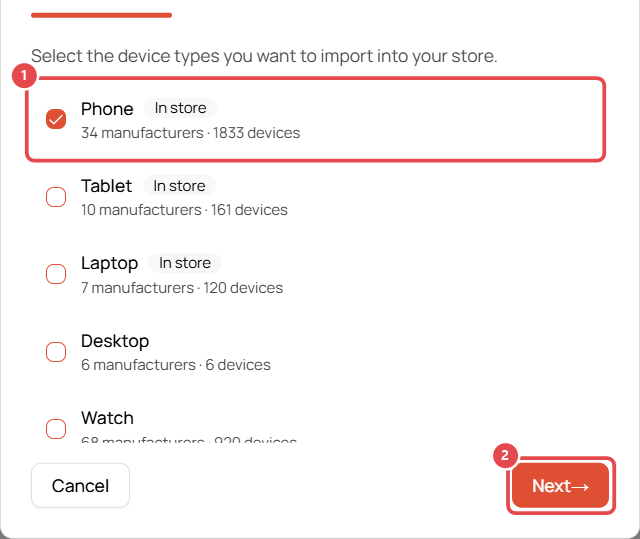
- Tick the device types you repair ①, e.g. Phone, Tablet, Laptop, Game Console. Then click Next ②.
- All manufacturers are pre-selected. Untick any brands you don't service, then click Next.
- All models are pre-selected. Use search or expand a brand to fine-tune, then click Next.
- Review the summary and click Import.
Your device types appear with their manufacturer and model counts ③. When you create a ticket, you can now pick Phone → Apple → iPhone 14 from a list.
Safe to re-run: importing only adds new brands and models. It never removes or overwrites devices you've edited yourself.
Part 3: Build your pre-repair checklist
The checklist appears on every new ticket, so your tech records what works and what doesn't before starting the repair. This protects you if a customer later says something was damaged in your shop.
- Go to Settings → Repairs → Conditions.
- Under Pre-Repair Conditions, click Add Condition ①.
- Enter the Condition Name, e.g. Front Camera, and choose a response type:
- Checkbox: tick when verified.
- Yes / No: e.g. Powers On.
- Working / Not Working: e.g. Charging Port.
- Click Save Condition. It's added to the list ②.
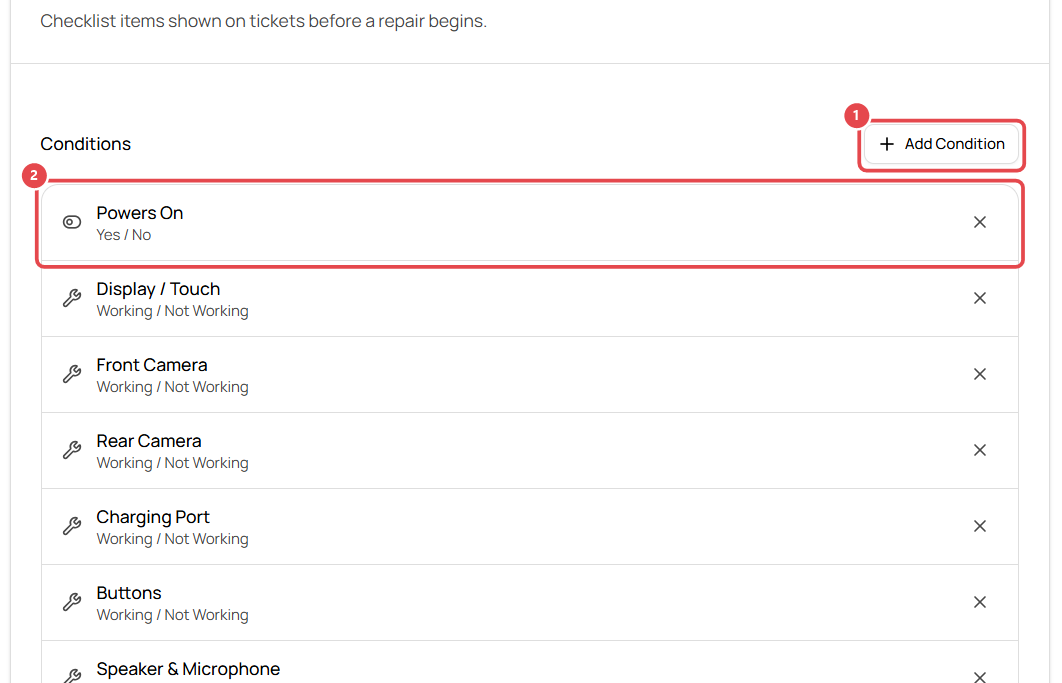
Suggested checklist for phones: Powers On (Yes/No), Display / Touch, Front Camera, Rear Camera, Charging Port, Buttons, Speaker & Microphone, Face ID / Fingerprint (all Working/Not Working), Water Damage Indicator (Yes/No).
What to do next
- Add your parts to inventory so they can be added to tickets.
- Open your first repair ticket.