

Give every staff member their own login so you can see who did what, control what each person can access, and track their hours and commissions.
Who can do this: Owners and admins. Time needed: 1 minute per person.
Steps
- Go to Settings → Team → Employees and click Invite Employee.
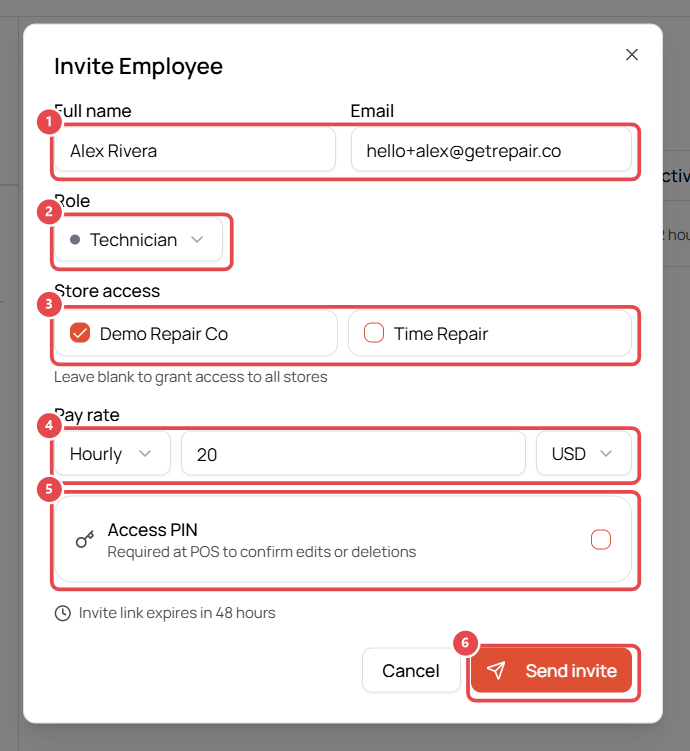
- Fill in the invite:
- Full name and Email ①: the invite is sent to this address.
- Role ②: Manager, Technician or Front Desk. See Set up roles and permissions to change what each role can do or create your own.
- Store access ③: tick the stores this person can work in. Leave everything unticked to give access to all stores.
- Pay rate ④: hourly or salary, in your currency. Used for timesheets and payroll reports.
- Access PIN ⑤: tick to require this person to enter their PIN at the POS before confirming edits or deletions.
- Click Send invite ⑥.
What happens next
- The person gets an email: "You're invited to join [your company] on Get Repair". They click the link to set up their account.
- Until they accept, the invite shows under pending invite ② with its role and expiry. Invite links expire after 48 hours. Click Cancel to withdraw an invite, and invite again if it expires.
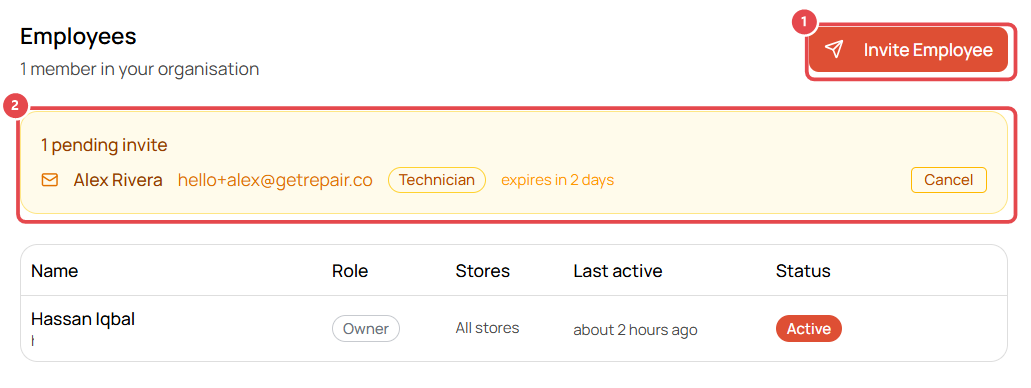
Once they accept, they appear in the Employees list with their role, stores and last-active time.
Good to know
- Owners and admins always have full access and are never asked for a PIN.
- Change someone's role or stores later from the same Employees list.
- Each employee sets their own 4-digit PIN for clocking in and authorizing POS actions (Profile → Access PIN).