

Roles decide what your staff can see and do. Get Repair comes with four system roles (Admin, Manager, Technician, Front Desk), and you can create your own.
Who can do this: Owners and admins.
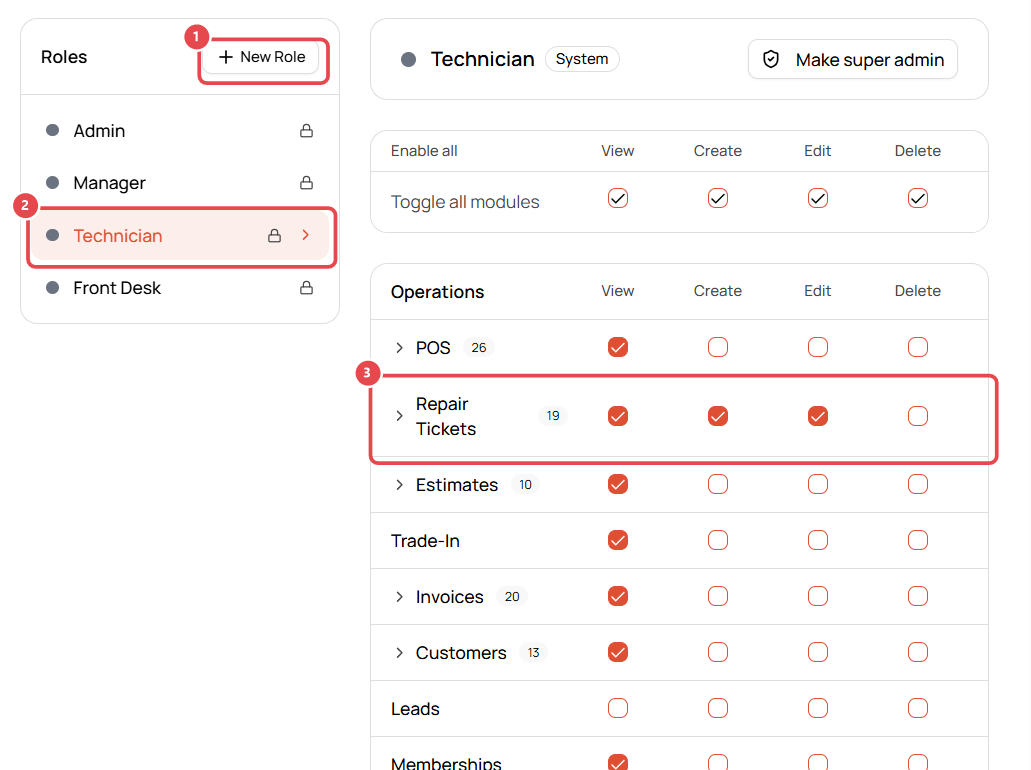
View or change a role
- Go to Settings → Team → Roles & Permissions.
- Select a role in the Roles list ②, e.g. Technician.
- For each module, tick what the role can do: View, Create, Edit, Delete.
- Example ③: Technicians can view, create and edit Repair Tickets, but not delete them.
- Modules with a number (e.g. POS 26) have detailed permissions. Click the arrow to expand them.
- Use Toggle all modules at the top to switch a whole column on or off.
Create a custom role
Click New Role ①, name it (e.g. Senior Technician), then tick its permissions as above. Assign it to staff from Settings → Team → Employees.
Permission groups
| Group | Modules |
|---|---|
| Operations | POS, Repair Tickets, Estimates, Trade-In, Invoices, Customers, Leads, Memberships, Loyalty, Gift Cards |
| Inventory | Inventory, Transfers, Purchase Orders, Suppliers, RMAs |
| Finance & Reports | Expenses, Reports, Billing, Data Export |
| Management | Tasks, Timesheets, Schedule, Chat, Activity Log, Dashboard, Wiki |
| System | Settings, Integrations, Locations |
| Cash Register | Cash Register actions |
| Inbox | Access, reply to chats, assign chats, manage channels |
Tips
- Make super admin gives a role full access to everything. Use it sparingly.
- Want staff to be able to do something only with a manager's approval? Use PINs instead of removing the permission. See Require a PIN for sensitive actions.