

With Iris turned on, three AI buttons appear in the Inbox reply box. They save time on busy days, but you always review before anything is sent.
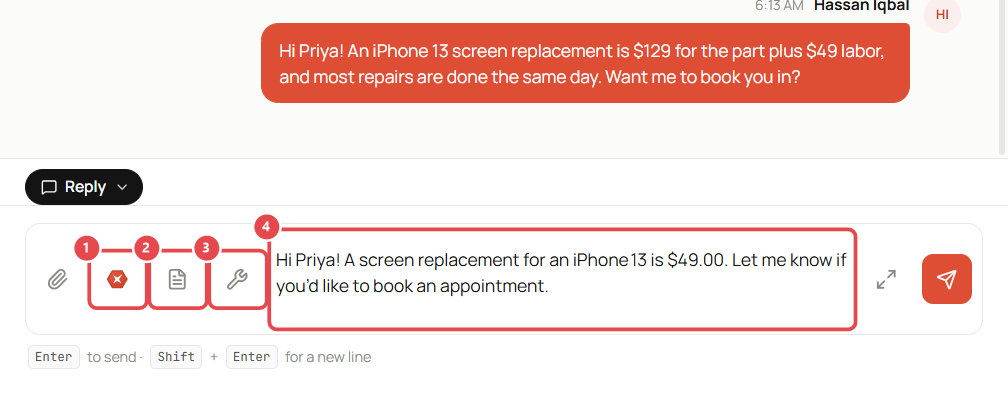
| Button | What it does |
|---|---|
| ① Reply with Iris | Drafts a reply in the message box ④ for you to edit and send. |
| ② Summarize this thread | Shows a short summary of the conversation, the customer's mood, and a suggested next step. |
| ③ Create a repair ticket from this thread | Reads the conversation and starts a repair ticket with the customer and device filled in. |
Draft a reply
- Open the conversation and click Reply with Iris ①.
- Iris writes a draft in the message box ④. Read it carefully and edit it, especially prices and dates.
- Press Enter to send, or clear the box to discard it.
Check prices before sending. Iris may quote only the labor price from your services list and leave out parts. Add the part price yourself if the repair needs one.
Summarize a conversation
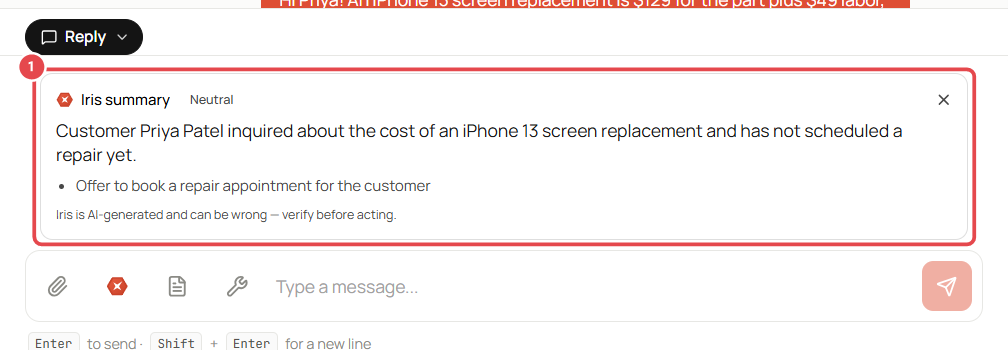
Click Summarize this thread ②. The summary appears above the reply box ①, with the customer's mood (e.g. Neutral) and a suggested action (e.g. Offer to book a repair appointment). Close it with ×.
Create a ticket from a chat
Click Create a repair ticket from this thread ③. If Iris finds a repair request, it starts a ticket with the details from the chat. If it says No repair request found, create the ticket yourself with New Ticket in the customer panel.
Good to know
- Everything Iris writes is marked as AI-generated and can be wrong. Verify before acting.
- To let Iris answer website visitors automatically, see Let Iris answer live chat.