

Iris can answer website visitors automatically (ticket status, invoices, opening hours, common questions) and hand the chat to your team when needed. It's like having someone on the chat after hours.
You need: live chat set up on your website (see Add live chat to your website) and Iris AI turned on for your account.
Turn it on
- Go to Inbox → Channels → Live Chat → Configure.
- Scroll to Iris and switch on Enable Iris ①.
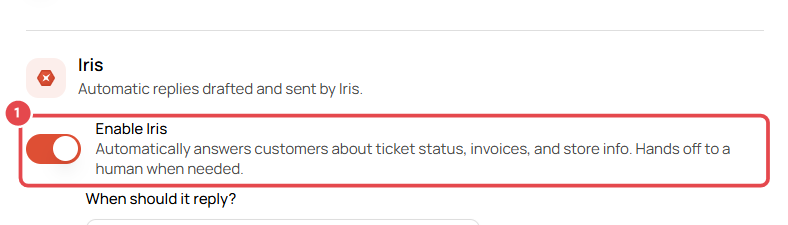
Choose how it behaves
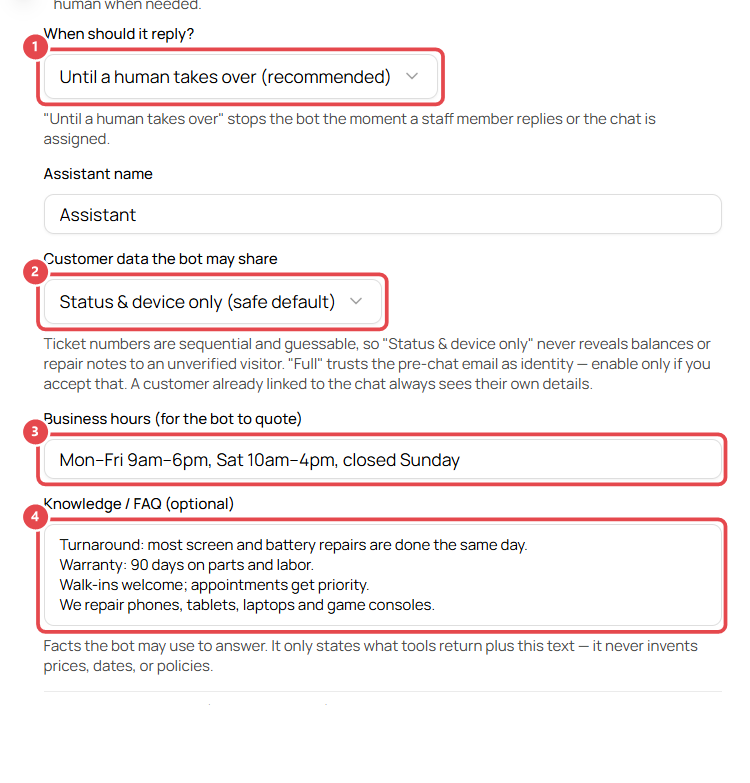
- When should it reply? ①
- Until a human takes over (recommended): Iris stops as soon as a staff member replies or the chat is assigned.
- Always: Iris replies to every message.
- Assistant name: what visitors see, e.g. Assistant or your shop mascot's name.
- Customer data the bot may share ②:
- Nothing — store info only
- Status & device only (safe default): never reveals balances or repair notes to a visitor who isn't verified.
- Full — incl. balances & repair notes: trusts the email entered before the chat. Only use this if you accept that risk.
- Business hours ③: the hours Iris quotes, e.g. Mon–Fri 9am–6pm, Sat 10am–4pm.
- Knowledge / FAQ ④: facts Iris may use, one per line (turnaround times, warranty, walk-in policy, what you repair). Iris only states what's here or what your data shows. It doesn't make up prices, dates or policies.
- Optional: Guided start shows tappable options (Book a repair, Check status…) under the greeting.
- Click Save Settings.
Test it
Click Test widget at the top of the Live Chat page and ask a question, e.g. "What are your hours on Saturday?" Iris's replies also appear in your Inbox, so your team can see what was said and step in.
Good to know
- Ticket numbers are sequential and easy to guess. That's why the safe default never shows balances or notes to unverified visitors.
- Update the FAQ whenever your prices, hours or policies change.