

A lead is someone who has asked about a repair or product but hasn't booked yet: a phone call, a walk-in asking for a price, or a request from your website form or customer portal. Leads keep these inquiries in one list so none are forgotten.
Where leads come from
- Web Form and Portal: added automatically when customers submit a request.
- Manual: added by your team (below).
- Import: bulk-added with Import on the Leads page.
Add a lead manually
- Go to Leads and click New Lead.
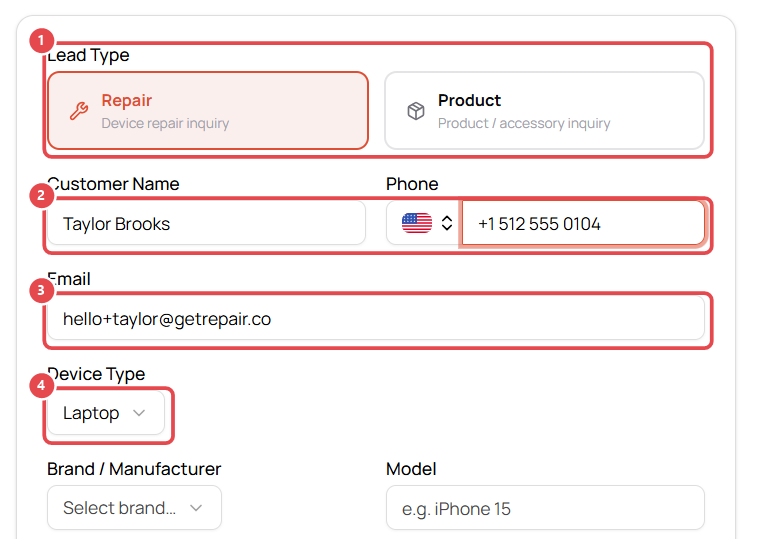
- Choose the Lead Type ①: Repair (device repair inquiry) or Product (product or accessory inquiry).
- Enter the Customer Name ②, Phone and Email ③. Check the phone country flag before typing the number.
- Choose the Device Type ④, then the Brand / Manufacturer and Model ①.
- Describe the problem ② in the customer's words.
- Click Create Lead ③.
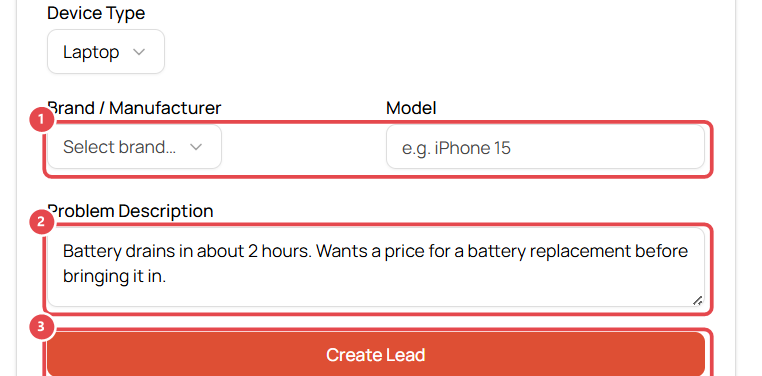
Choose the Device Type first. Brand and model are then picked from your device catalog, and changing the type clears them.
Work the lead
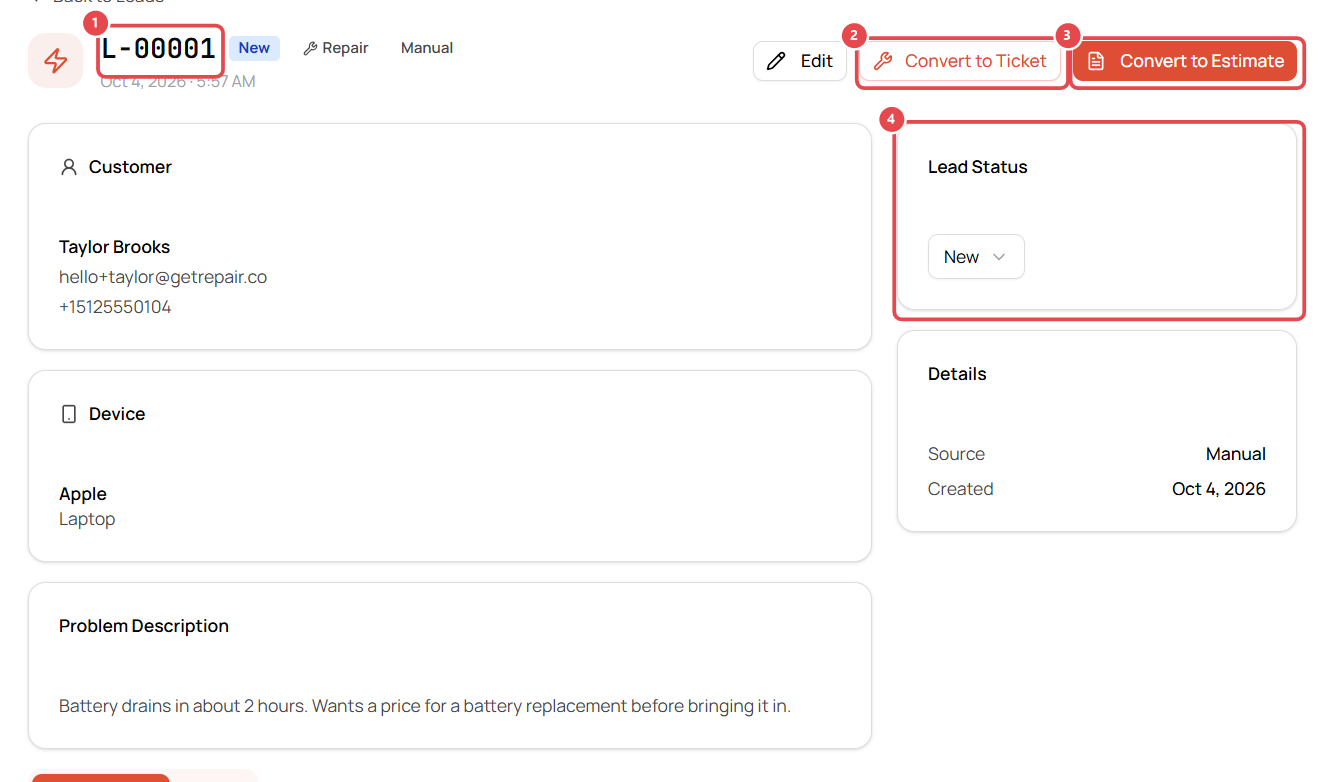
Each lead gets a number ①, e.g. L-00001. From the lead you can:
- Convert to Ticket ②: the customer is bringing the device in. Their details carry over to a new repair ticket.
- Convert to Estimate ③: they want a price first.
- Update the Lead Status ④ as you go: New → Contacted → Qualified → Converted, or Lost.
- Add Internal Notes to record calls and follow-ups.
Keep on top of leads
The Leads page shows counts per status (Draft, New, Contacted, Qualified, Converted, Lost). Filter by date, status, type (Repair or Product) and source (Web Form, Portal, Manual, Import).