

The customer portal is a self-service page where customers sign in with their email to track repairs, view invoices and approve estimates. The repair tracker is a small widget for your website: customers enter a ticket number and last name to see a repair's status, with no sign-in needed.
Turn on the portal
-
Click your initials in the top-right corner, then click Integrations.
-
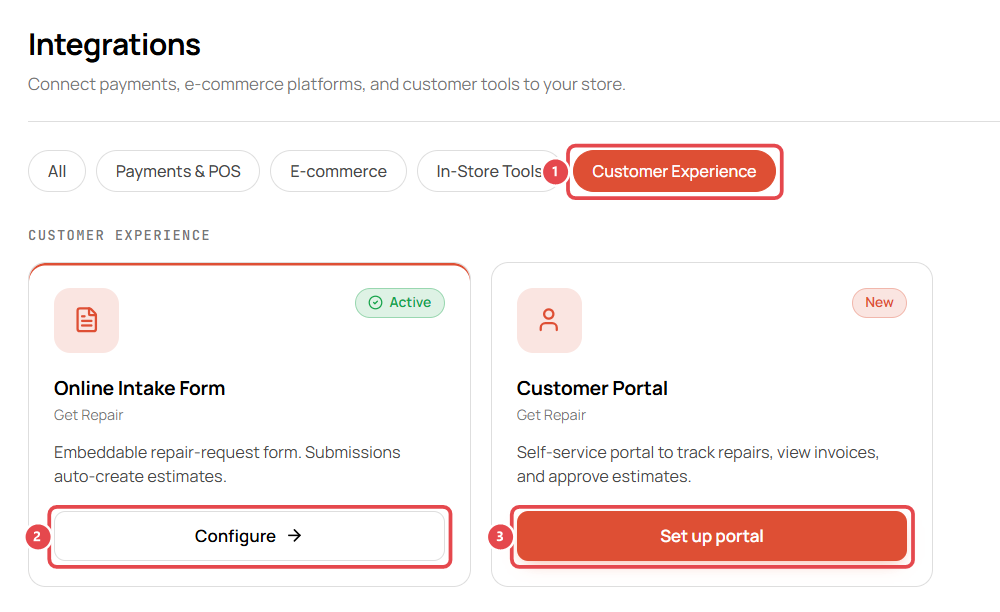
Click Customer Experience, then click Set up portal on Customer Portal.
-
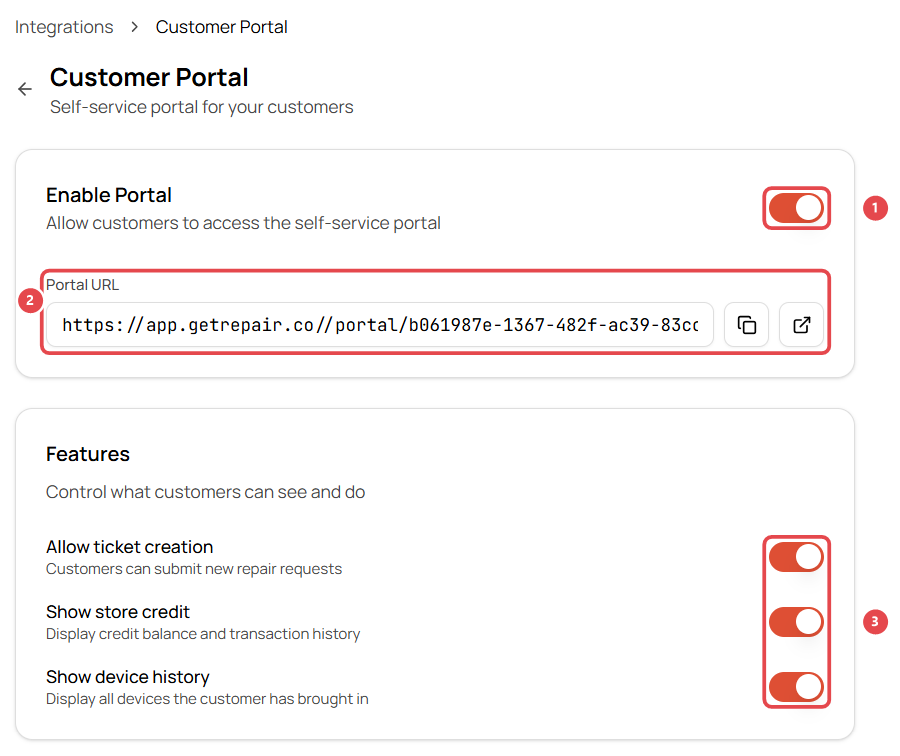
Switch on Enable Portal ①. Your Portal URL ② appears underneath; use the buttons beside it to copy or open it.
-
Choose what customers can see and do ③:
- Allow ticket creation: customers can submit new repair requests from the portal. These arrive as leads with source Portal.
- Show store credit: shows their credit balance and history.
- Show device history: lists every device they've brought in.
-
Under Branding, set the Accent Color and an optional Login Page Message (for example Welcome! Enter your email to see your repairs.).
-
Click Save Settings at the bottom of the page.
The portal is off until you switch it on. When it's on, the Portal URL appears under Enable Portal. Copy it and put it on your website, receipts and emails.
How customers sign in (magic link)
There's no password to remember:
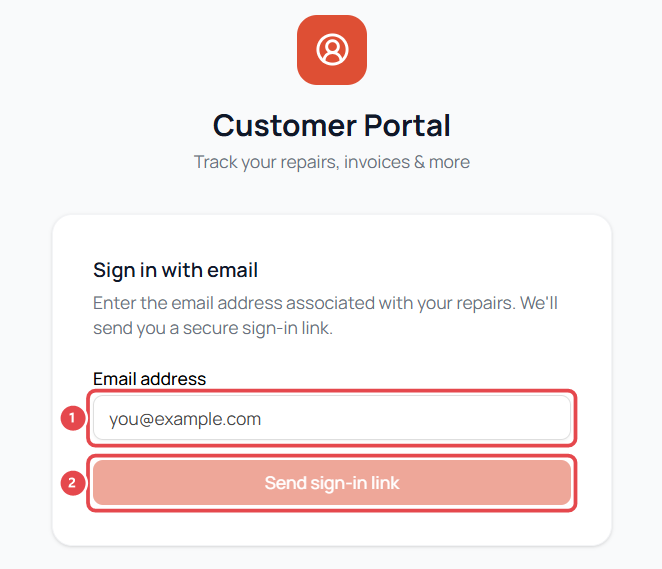
- The customer opens your portal link and enters the email address on their repairs ①.
- They click Send sign-in link ②.
- They open the email and click the secure link to sign in.
The email must match the one on their customer profile in Get Repair, so check that you've recorded customers' emails correctly.
Add the repair tracker to your website
The tracker works without the portal being switched on.
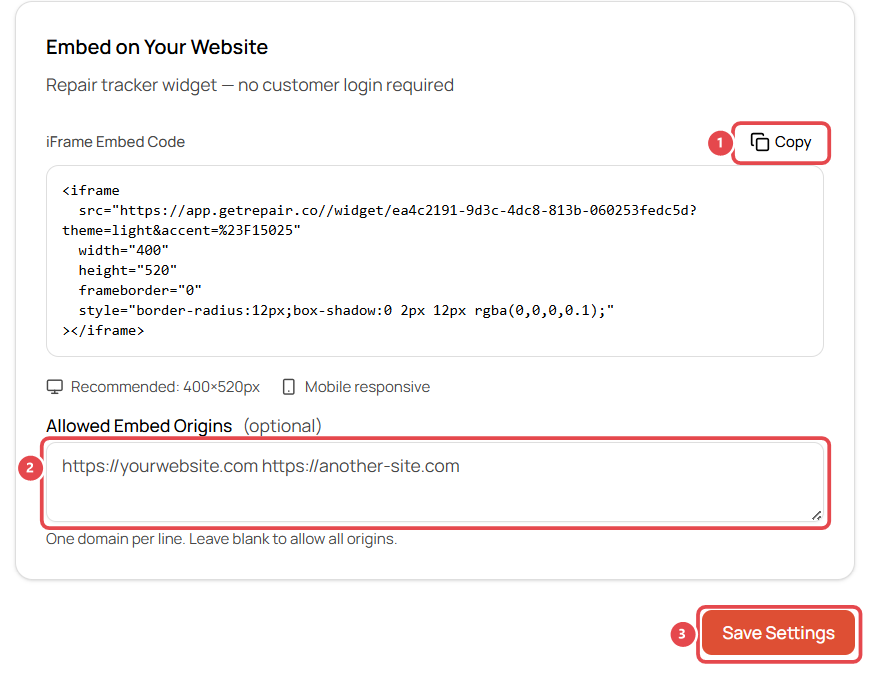
- On the Customer Portal page, scroll to Embed on Your Website.
- Click Copy ① next to the iFrame Embed Code.
- Paste it into your website. It's mobile friendly; the recommended size is 400 × 520 px.
- Optional: under Allowed Embed Origins ②, add your website's address (one per line) so the tracker can only be embedded on your site. Leave it blank to allow any site.
- Click Save Settings ③.
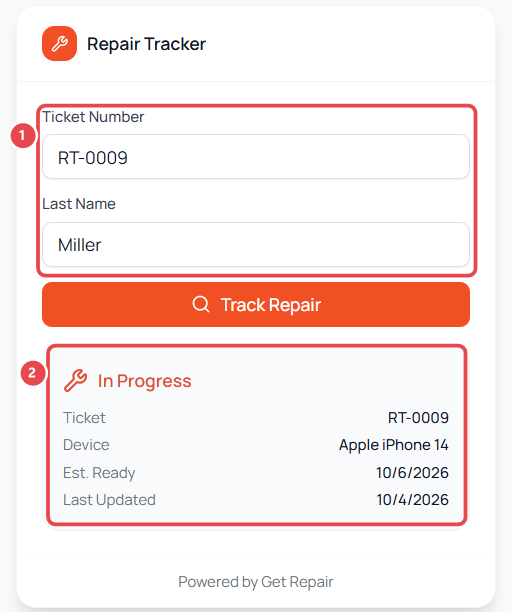
Customers enter their ticket number (for example RT-0009) and last name ①, then click Track Repair. They see ② the status (such as In Progress), the device, the estimated ready date and when the ticket was last updated.
Ticket numbers are printed on the customer's receipt and in status update messages. If the tracker can't find a ticket, check the customer's last name on the ticket.