Repair Configuration controls how new tickets start and what your team must fill in before saving. Set it once to keep check-ins consistent.
Steps
Go to Settings → Repairs → Configuration.
Defaults for new tickets
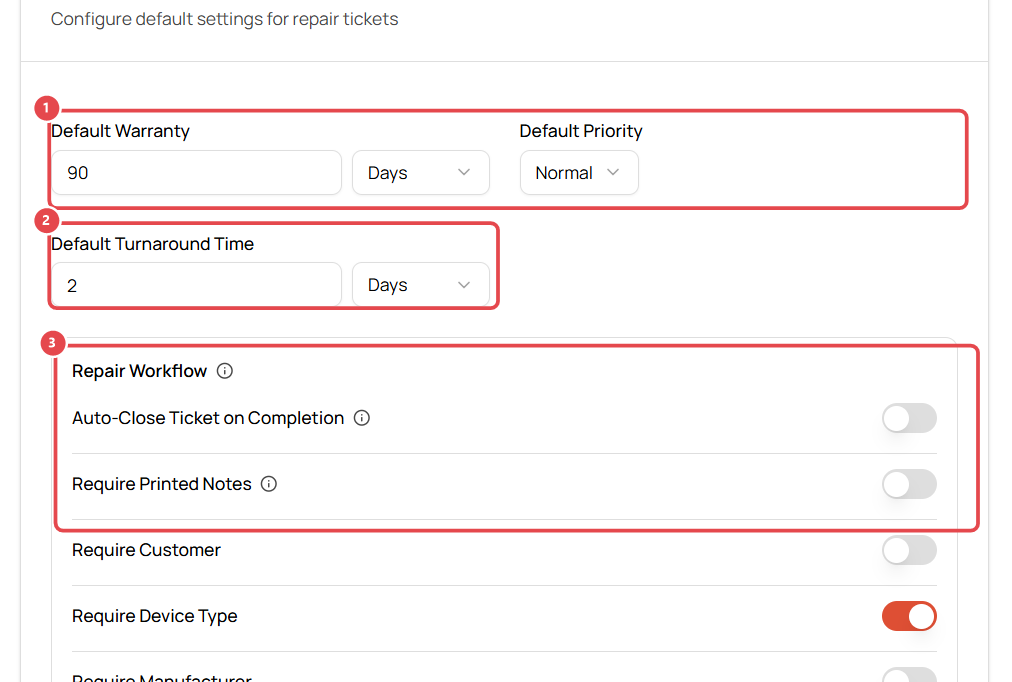
- Default Warranty and Default Priority ①: pre-filled on every new ticket, e.g. 90 days, Normal.
- Default Turnaround Time ②: used to suggest a due date, e.g. 2 days.
Repair workflow
- Choose what happens and what's required ③:
- Auto-Close Ticket on Completion: close the ticket automatically when it's marked complete.
- Require…: make fields mandatory before a ticket can be saved: printed notes, customer, device type, manufacturer, model, serial number, description, pre-repair images, pre-repair conditions.
Tip: turning on Require Pre-Repair Conditions and Require Pre-Repair Images protects you in disputes about existing damage.
Invoice, receipt, rush fee and terms
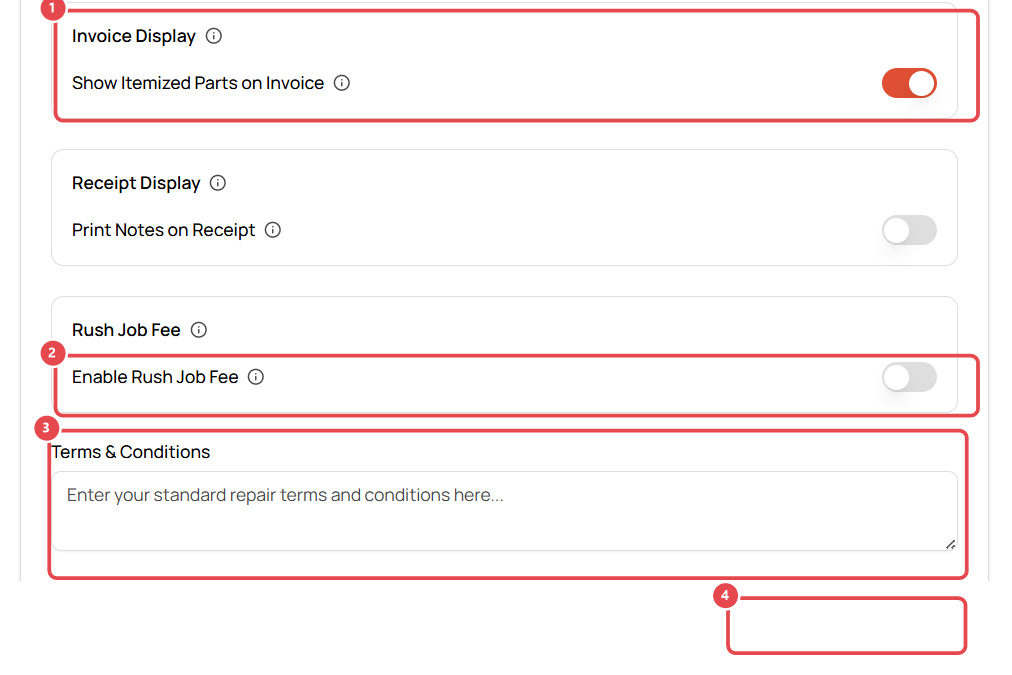
- Show Itemized Parts on Invoice ①: list each part separately on the customer's invoice.
- Print Notes on Receipt: include the ticket's printed notes on receipts.
- Enable Rush Job Fee ②: add a fee for priority repairs.
- Terms & Conditions ③: your repair terms, printed on tickets and receipts (e.g. data-loss disclaimer, unclaimed-device policy).
- Click Save Configuration ④.