

Your store profile is what customers see on invoices, receipts, reports and every email Get Repair sends for you. Make sure it's complete before your first sale.
Steps
- Go to Settings → Business → Store Profile.
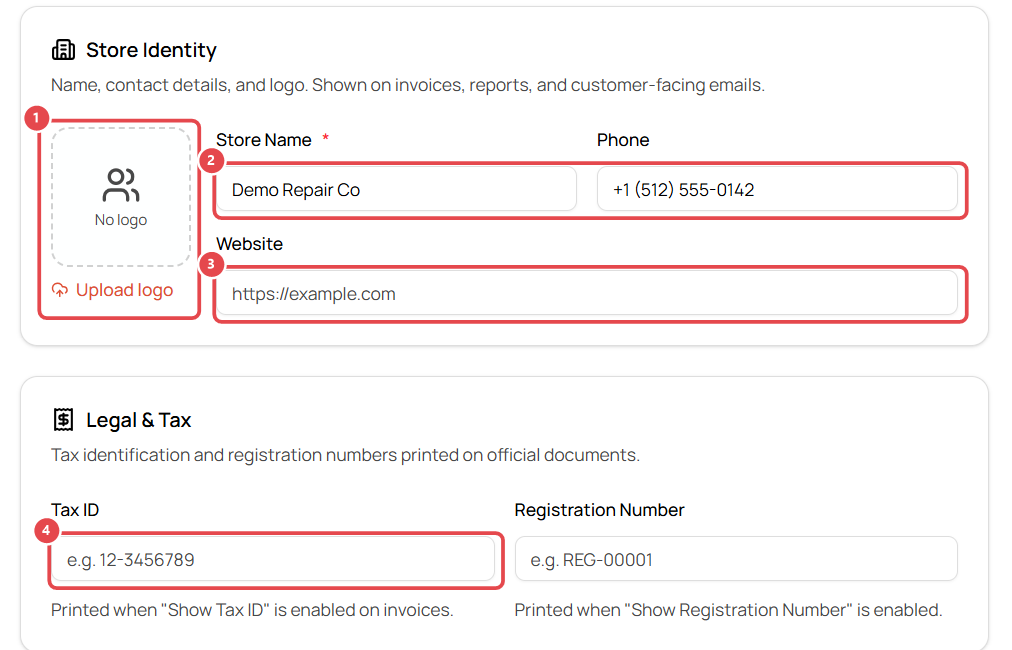
- Logo ①: click Upload logo. A square logo works best.
- Store Name and Phone ②: shown on documents and in customer emails ("Questions? Call…").
- Website ③: your shop's site.
- Legal & Tax ④: your Tax ID and Registration Number. They print on invoices when Show Tax ID / Show Registration Number is turned on in your invoice template.
- Email Configuration: the From address and Display name your customers see on store emails.
- Location: the street address, city, state, ZIP and country printed on invoices.
- Click Save Store Profile.
Good to know
- The profile is per store. Each location can have its own name, phone and address.
- Currency, number format and timezone are under Localization. See Set your currency, number format and timezone.