

The Inbox collects website chats (and Gmail, if connected) in one place. Every conversation shows the customer's details and history, so you can answer questions and book repairs fast.
Steps
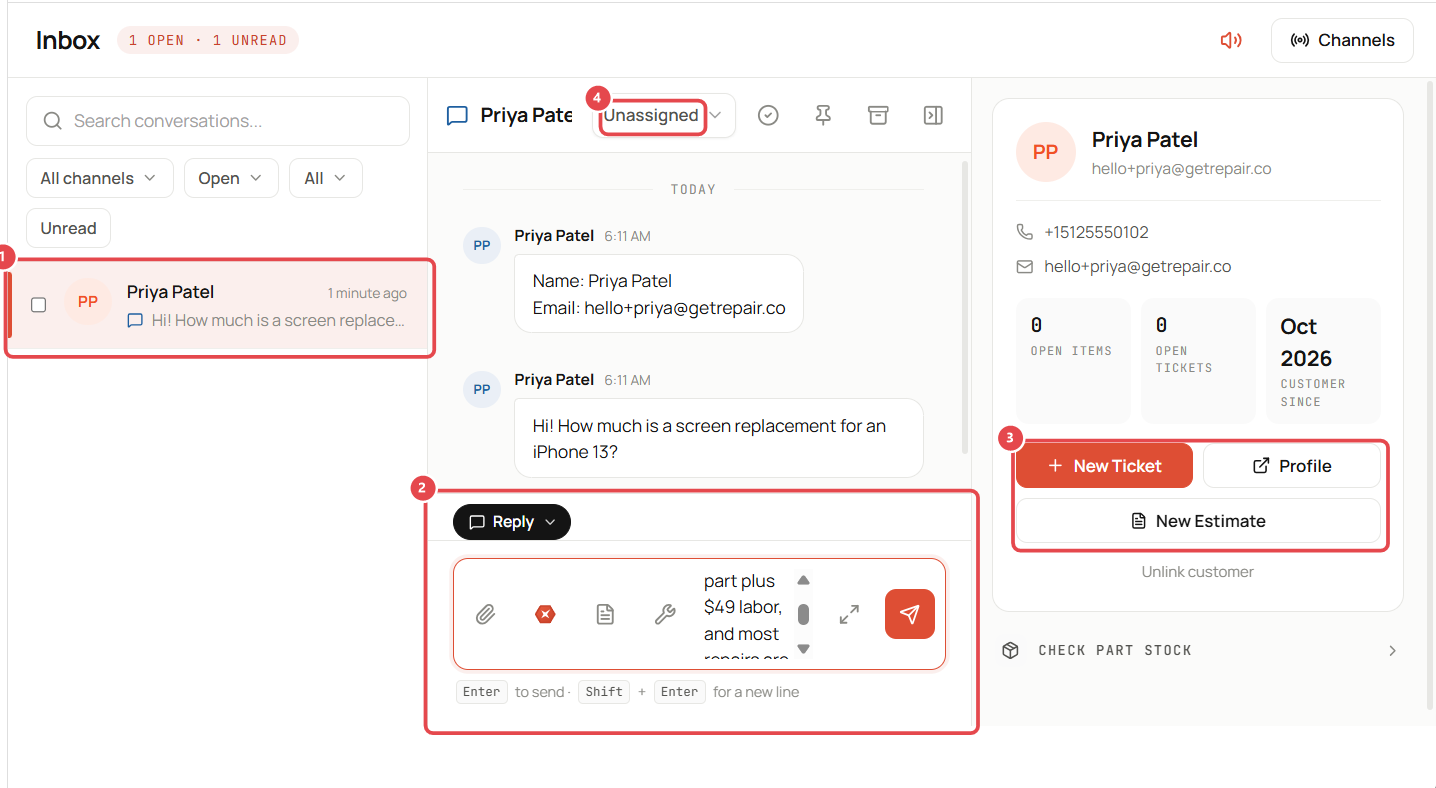
- Open Inbox. Unread conversations are highlighted. Click one in the list ①.
- Type your reply in the box ② and press Enter to send (Shift + Enter for a new line). Use the icons to attach a file or insert a saved item.
- Use the customer panel ③ to act right away:
- New Ticket: book the repair.
- New Estimate: send a price.
- Profile: open the full customer record.
- Check part stock: see if you have the part before you quote.
- Assign the conversation ④ to yourself or a colleague so everyone knows who's handling it.
Good to know
- If the visitor's email matches an existing customer, the chat is linked to their profile automatically. Use Unlink customer if it matched the wrong person.
- Use the icons at the top of the conversation to resolve, pin or archive it.
- Filter the list by channel, Open/All and Unread.
- Live chat needs to be set up first. See Add live chat to your website.