

With live chat, website visitors can message you directly. Chats land in your Inbox next to the customer's tickets and history.
Who can do this: Owners, admins and anyone allowed to manage Inbox channels.
1. Open the Live Chat channel
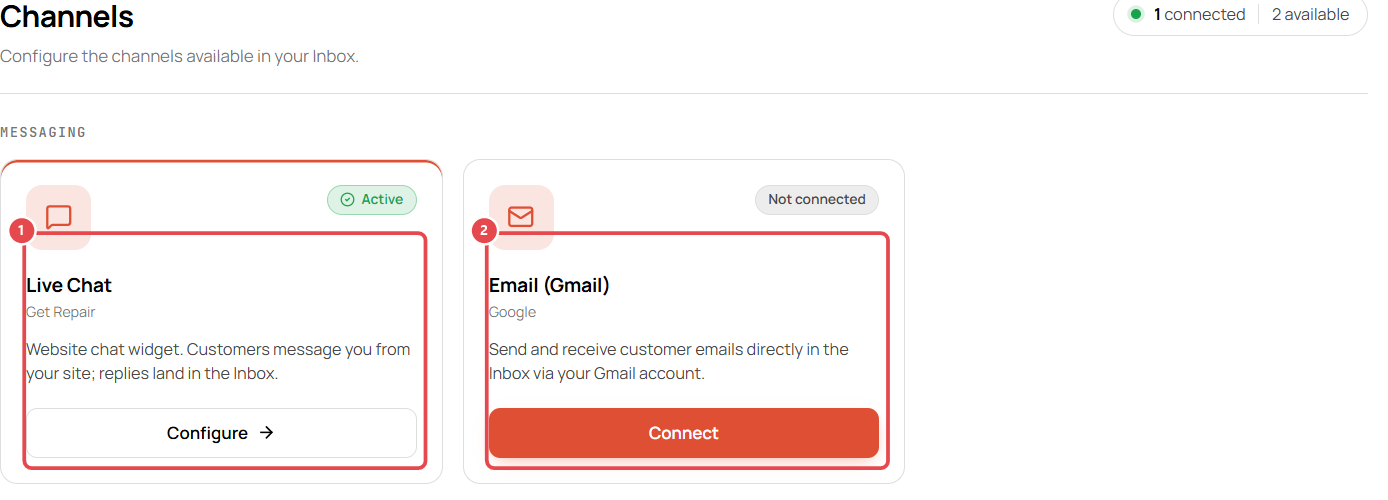
Go to Inbox → Channels.
- Live Chat ① is your website widget. Click Configure.
- Email (Gmail) ② lets you send and receive customer emails in the Inbox. Click Connect and sign in with Google.
2. Test it and copy the embed code
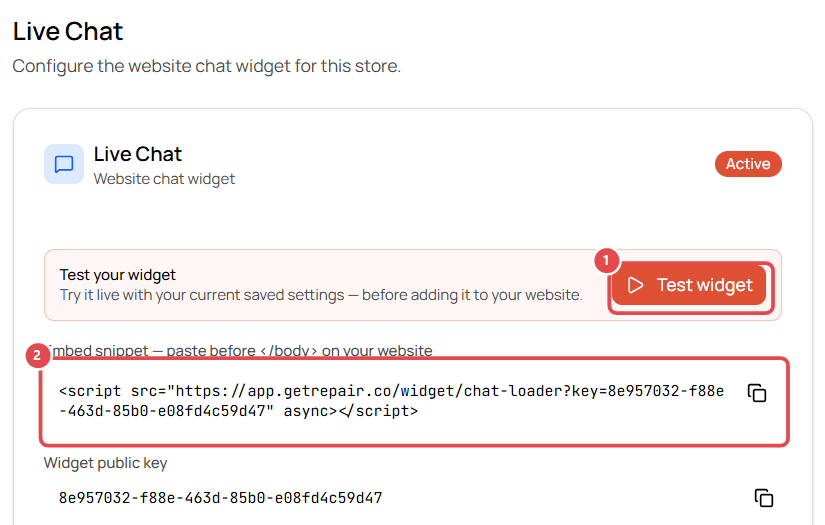
- Click Test widget ① to try the chat with your current settings.
- Copy the embed snippet ② and paste it just before
</body>on every page of your website (or in your website builder's custom-code setting).
Allowed origins: to stop other sites from loading your widget, list your domains (e.g.
yourshop.com) under Allowed origins.
3. Make it look like your shop
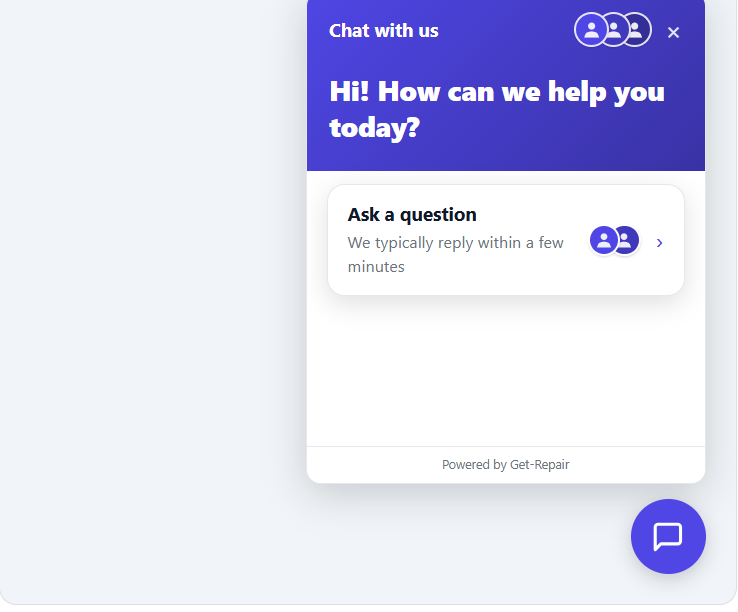
Under Appearance, choose the launcher icon and color, brand color, header title and subtitle, logo, light or dark theme, position (bottom right or left), launcher size and shape. The Widget Preview updates as you go.
4. Set the behavior
- Greeting message and reply-time note shown when the chat opens.
- Away / offline message for outside opening hours.
- Auto-open on load and a proactive teaser bubble after a delay.
- Pre-chat fields: ask for name, email and/or phone before the chat starts.
- Let visitors choose a location if more than one store has live chat.
5. Route incoming chats
Under Routing, choose who gets new chats:
- Unassigned: staff claim chats manually.
- Fixed: always assign to one person.
- Round robin: rotate between staff.
Remember to save your changes. Then see Reply to customers in the Inbox.