

Localization controls how prices look everywhere in Get Repair (tickets, estimates, invoices, receipts, reports) and which timezone your reports and activity logs use. Check it once when you create a store.
Who can do this: Store owners and admins. Time needed: 1 minute.
US shops: check that Price Format is set to Comma — 1,000.00 so prices show as $1,000.00 (not 1.000,00 $).
Steps
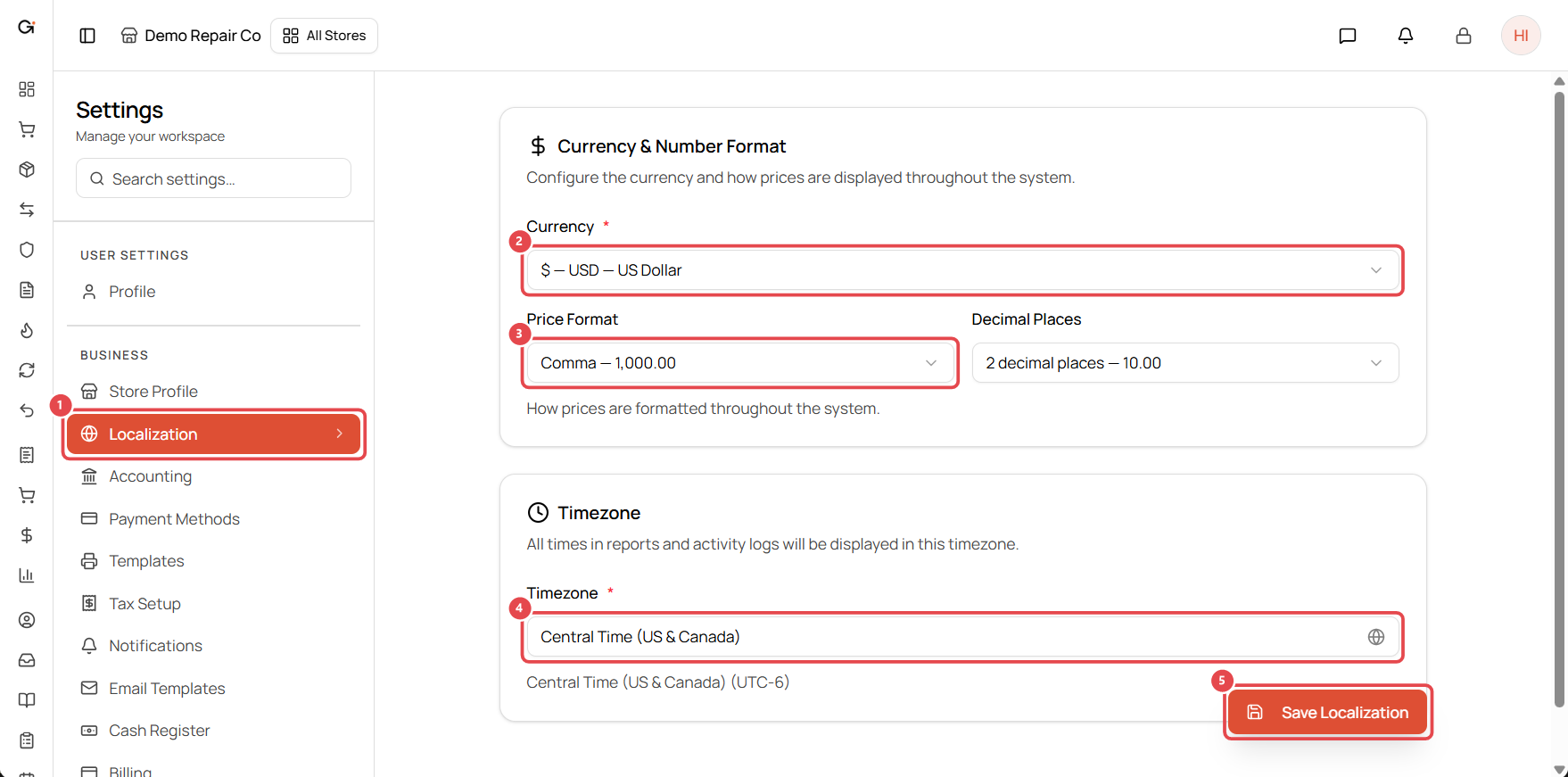
- Inside your store, open Settings and select Localization ①.
- Currency ②: choose your currency, e.g. $ — USD — US Dollar.
- Price Format ③: choose how thousands and decimals are separated.
- Comma — 1,000.00 for the US, UK, Canada, Australia and most of Asia.
- Decimal — 1.000,00 for most of Europe and South America.
- Decimal Places: choose 2 decimal places for most currencies.
- Timezone ④: search for your city or region, e.g. Central Time (US & Canada). Report dates and activity-log times use this timezone.
- Click Save Localization ⑤. A Saved message confirms the change.
Good to know
- The change applies right away to all screens in this store. Each store has its own localization, so a second location in another country can use a different currency.
- Changing currency doesn't convert existing prices. Update your product and service prices if you switch currency after adding them.
Troubleshooting
Prices still show the old format. Refresh the page after saving. If you have the store open on another device, refresh it there too.