

The dashboard is the first screen you see when you open a store. It shows how the store is doing for the date range at the top, and gives you one-click shortcuts to your most common jobs.
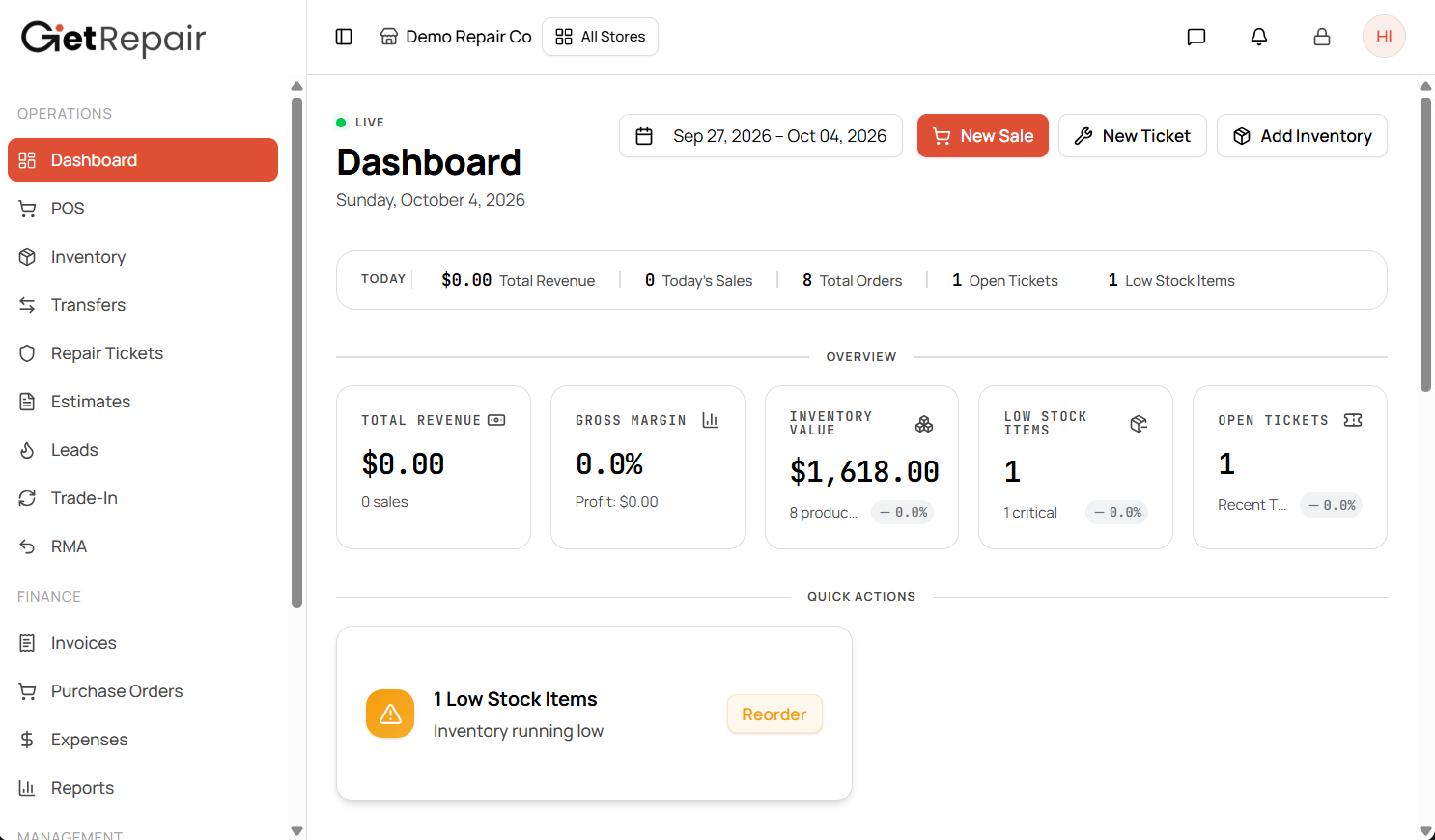
Shortcuts
- New Sale: open the POS.
- New Ticket: check in a repair (see Open a repair ticket).
- Add Inventory: add a product or part (see Add a product or part to inventory).
The numbers
| Card | What it shows |
|---|---|
| Today strip | Revenue, number of sales, orders, open tickets and low-stock items for today. |
| Total Revenue | Sales for the selected date range. Click it to open the sales report. |
| Gross Margin | Profit as a percentage of revenue (revenue minus the cost of what you sold). |
| Inventory Value | The cost value of everything in stock, with the number of products and SKUs. |
| Low Stock Items | Products at or below their reorder point. Click Reorder under Quick Actions to restock. |
| Open Tickets | Repairs that aren't closed yet, with your most recent tickets. |
Below the cards you'll find Sales Over Time, Top Products, Inventory by Category and Inventory Health (in stock, low stock, out of stock).
Change the date range
Click the date range next to the page title (e.g. Sep 27, 2026 – Oct 04, 2026) and pick new dates. All cards and charts update.
Tips
- Each store has its own dashboard. Use All Stores at the top to switch store.
- Set each product's reorder point so Low Stock Items stays useful (see Add a product or part to inventory).