

The online intake form lets customers request a repair from your website, a QR code or a social media link. They enter their details, pick their device and problem, and can attach photos. Each submission arrives in Get Repair as a new lead (source Web Form), ready for you to contact and turn into an estimate.
The form is on by default. Here's how to make it yours.
Open the form settings
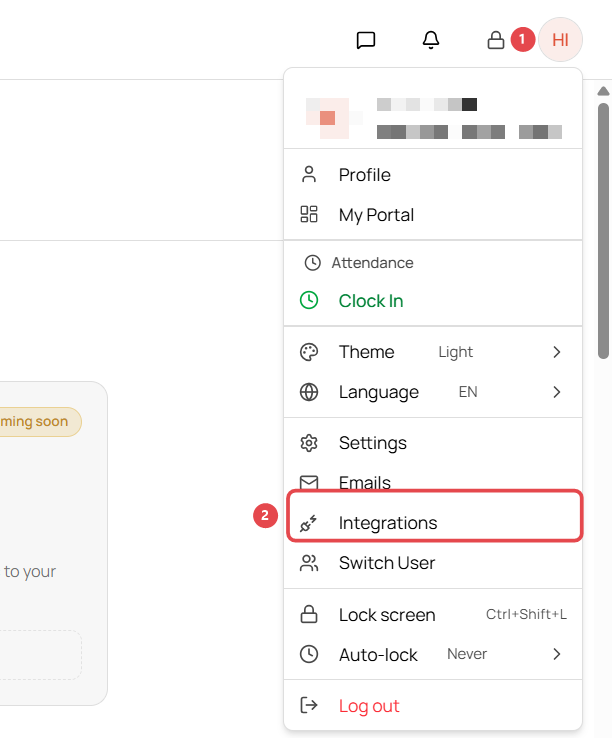
- Click your initials in the top-right corner ①.
- Click Integrations ②.
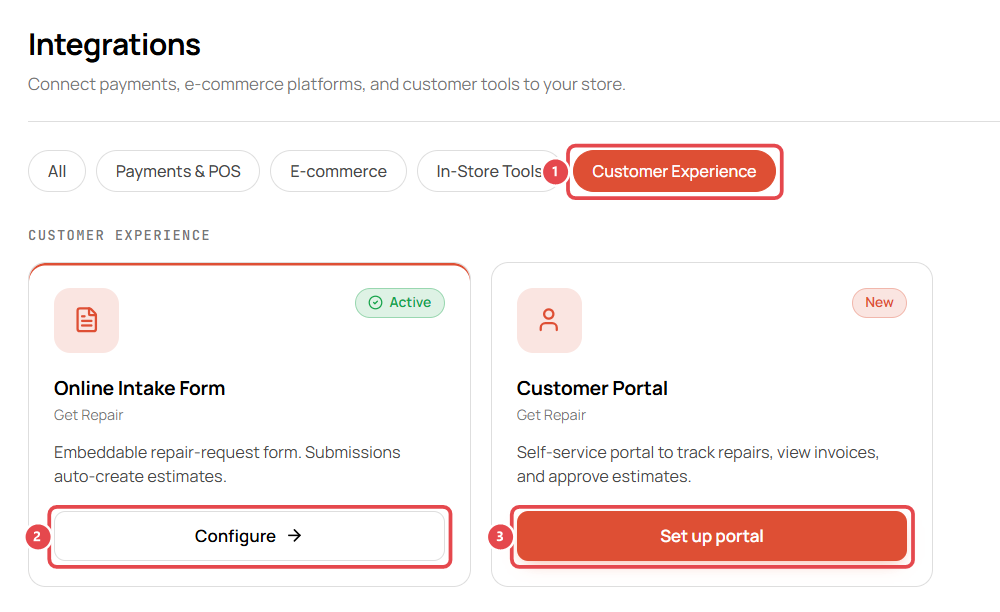
- Click Customer Experience ①, then click Set up on Online Intake Form ②. Once the form is active, the button reads Configure.
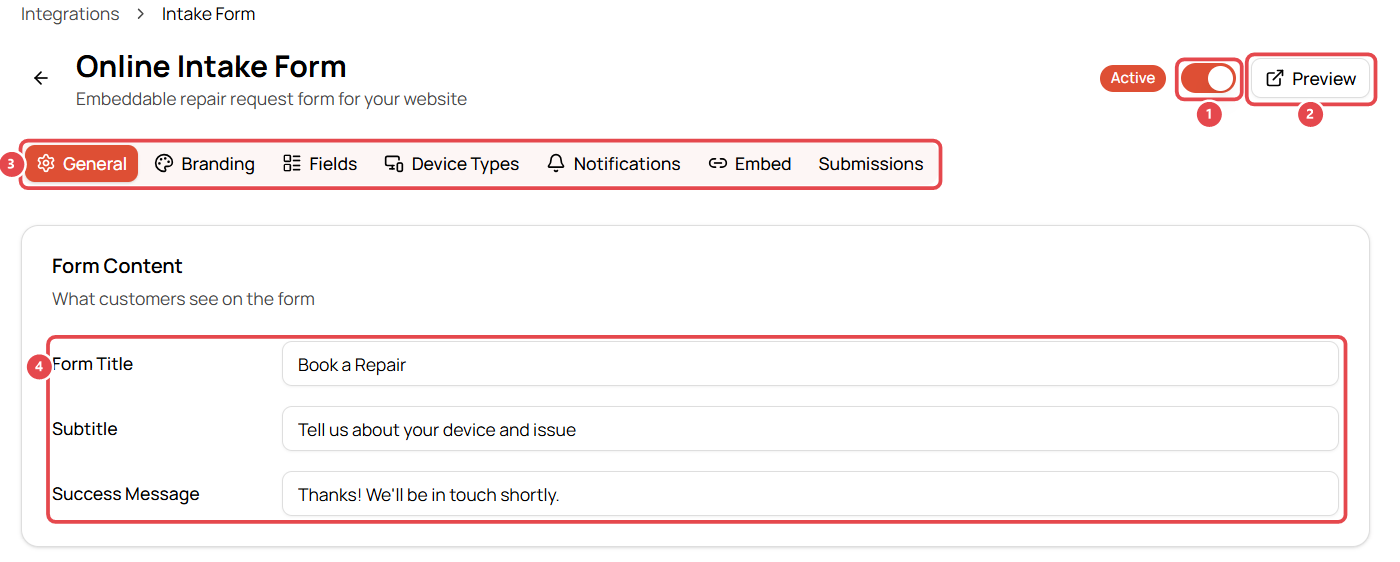
The switch at the top ① turns the form on or off, and Preview ② shows the form as customers will see it. The settings are split into tabs ③: General, Branding, Fields, Device Types, Notifications, Embed and Submissions.
General: wording and behaviour
- Form Title, Subtitle and Success Message ④: what customers read on the form and after they submit (for example Book a Repair and Thanks! We'll be in touch shortly.).
- Terms of Service URL and Privacy Policy URL: shown in the footer with a "By submitting, you agree…" line. Leave them blank to hide it. Links must start with
https://. - Multi-Step Form and Show Progress Bar: show one step at a time (Your Info → Devices → Details → Confirm).
- Restrict by country: block or allow customers by the country of their phone number. Blocked customers see your message and can't submit.
- Auto-Assignment: assign new leads from the form to a member of staff automatically.
- Allow store selection: if you have more than one store, customers pick which store the request goes to.
Branding: make it look like your shop
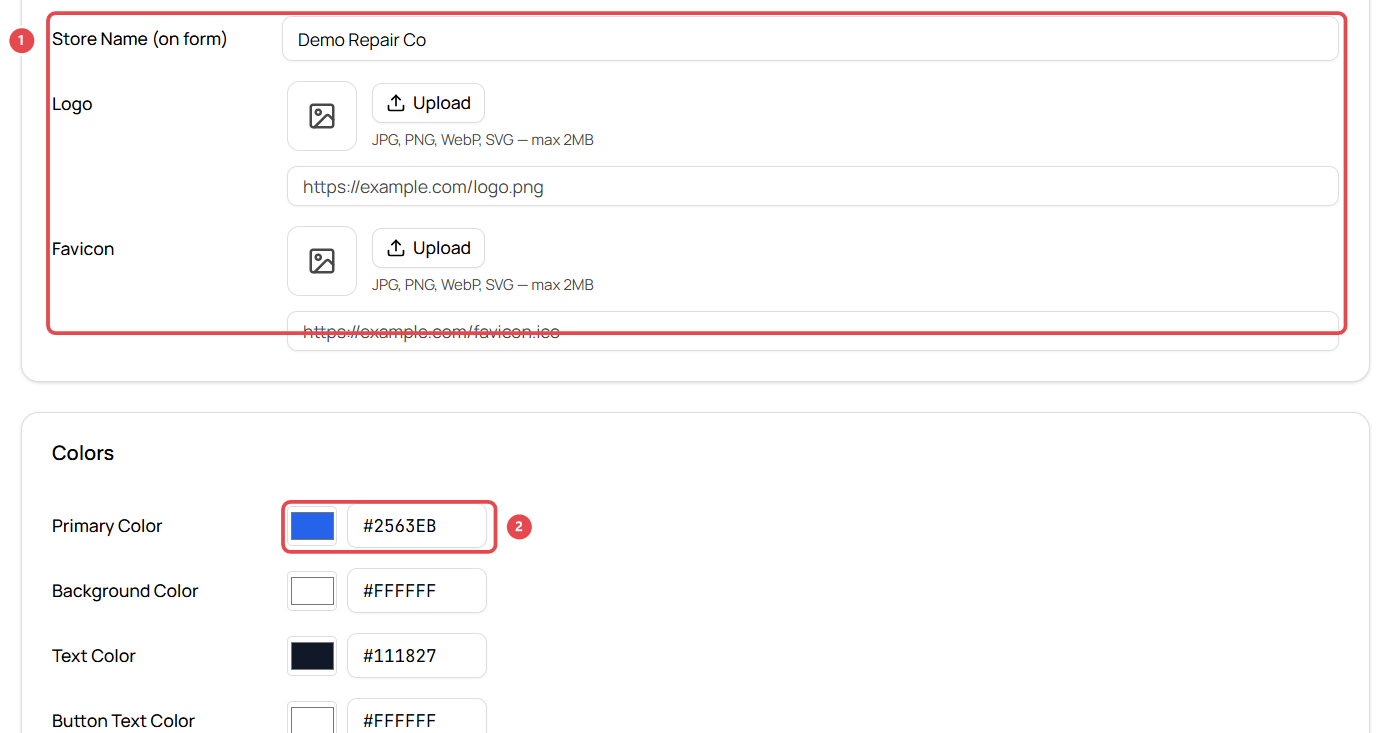
- Store Name (on form), Logo and Favicon ①: leave the logo empty to use your store's logo. The favicon is the small icon in the browser tab.
- Colors: Primary ②, Background, Text and Button Text. The primary color starts as blue, so change it to your brand color.
- Font Family.
Fields: what you ask for
Each standard field (name, email, phone, address, device type, manufacturer, model, IMEI/serial, problem description, photo upload, best time to call) can be shown or hidden, marked Required, renamed, and given helper text.
- Show repair problems on the form lists your repair services (from Settings → Repairs → Services) as tick boxes, such as Screen Replacement or Battery Replacement. Prices are never shown.
- Add Field creates your own questions.
Device Types: which devices customers can pick
This tab lists your device catalog from Settings → Repairs → Device Types. Switch off any manufacturers or models you don't repair so they don't appear on the form.
Notifications: who gets an email
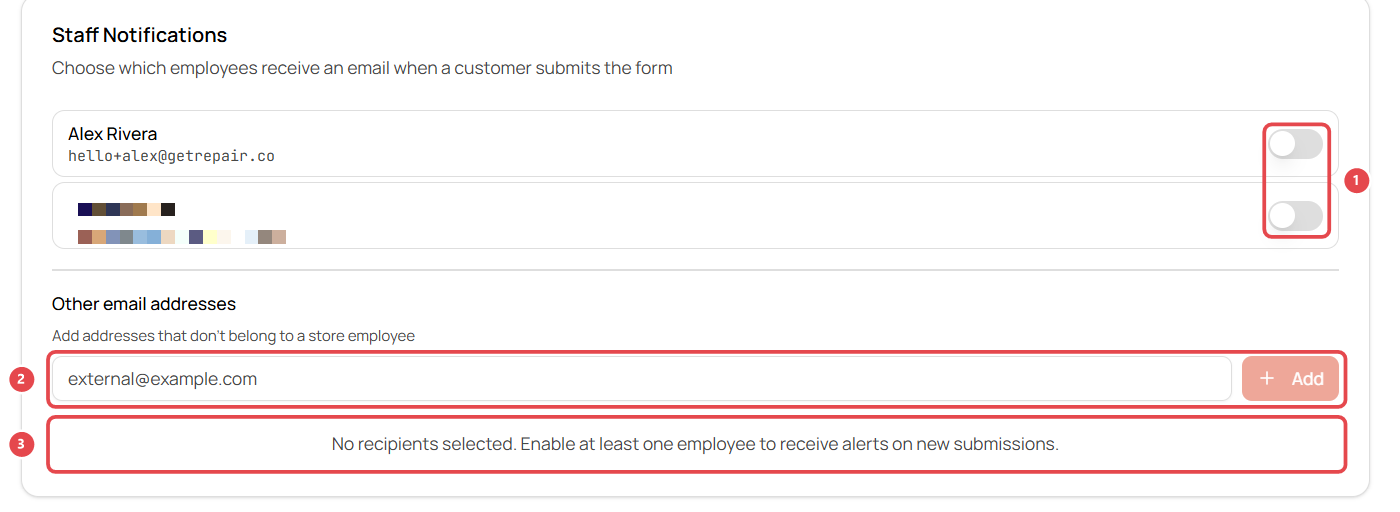
Switch on each member of staff who should get an email for every new submission ①. Use Other email addresses ② for a shared mailbox, such as your front desk.
No one is selected at first, and the page shows a warning ③. Pick at least one person or you won't be told about new requests.
Embed: put the form on your website
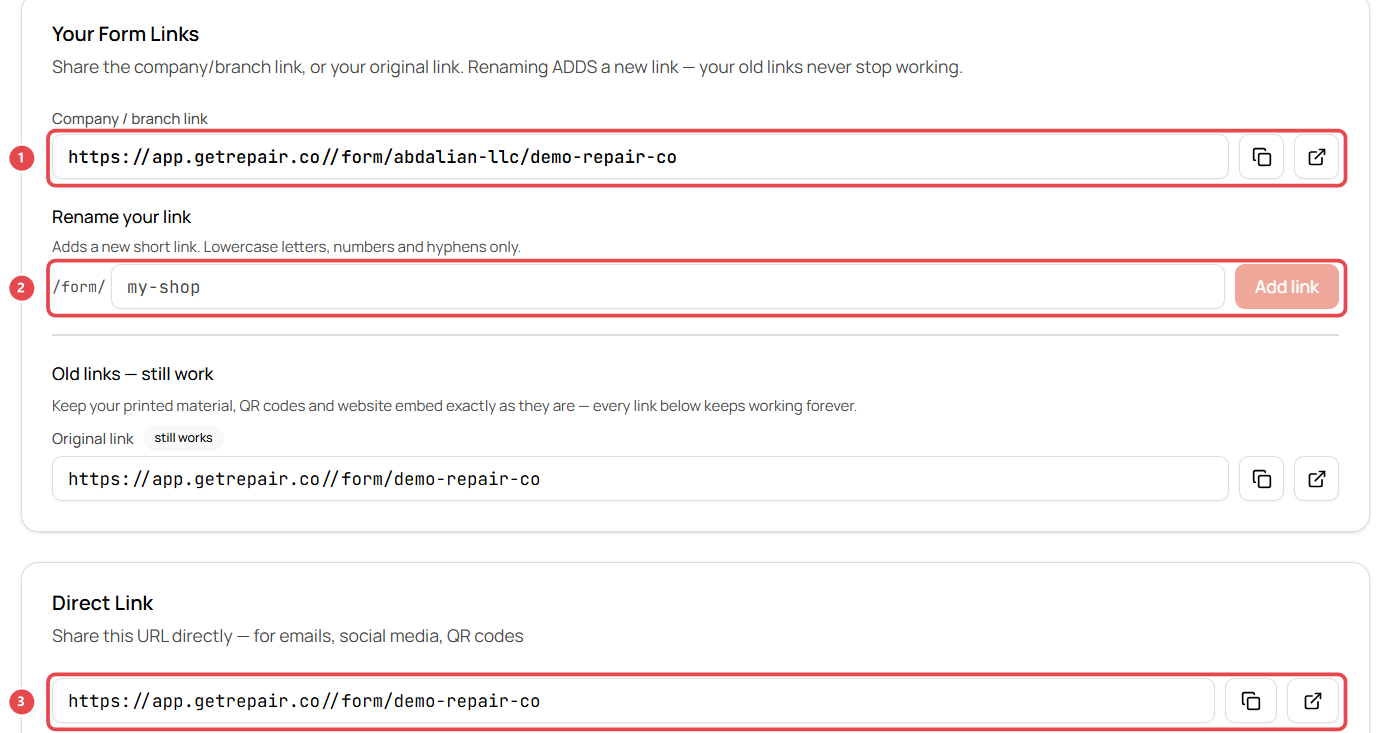
- Company / branch link ①: your form's link, including your company name.
- Rename your link ②: type a shorter, friendlier name (lowercase letters, numbers and hyphens) and click Add link. Your old links keep working, so printed QR codes never break.
- Direct Link ③: share it in emails, on social media or as a QR code. Use the buttons beside each link to copy it or open it.
- Embed on Your Website (further down): click Copy Embed Code and paste it into your website where the form should appear. It picks up your branding automatically.
What customers see
-
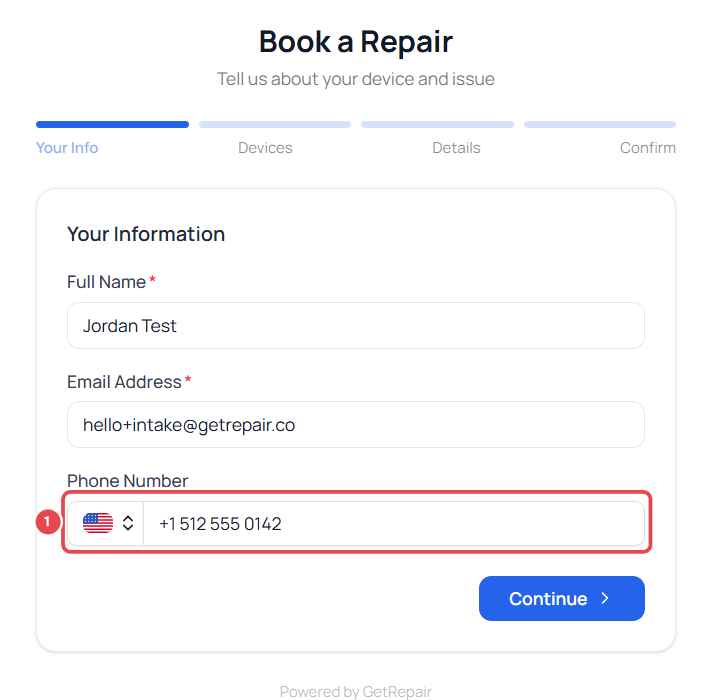
Your Info: name, email and phone. Customers should check the country flag next to the phone number ①.
-
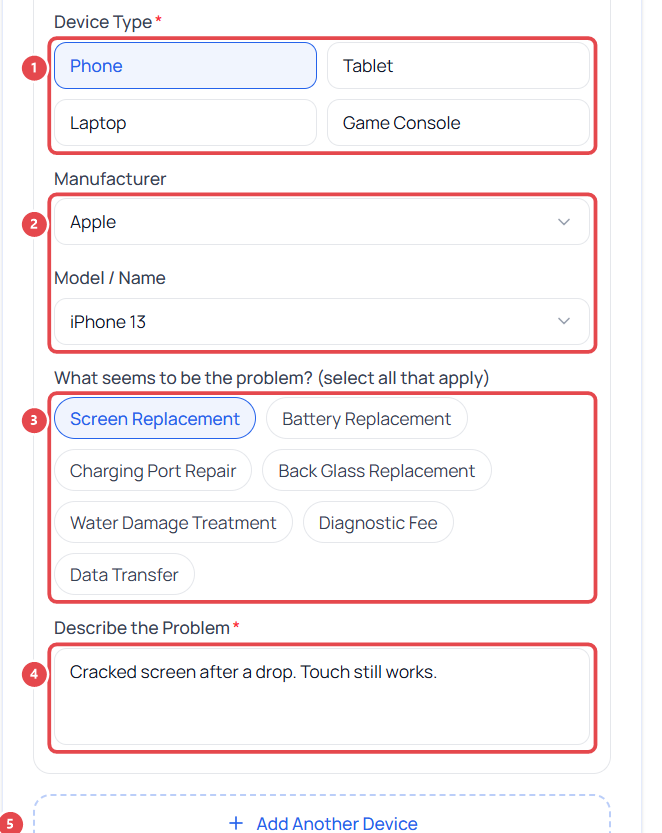
Devices: the device type ①, manufacturer and model ②, what's wrong ③ and a description ④. Add Another Device ⑤ lets them book several devices at once.
-
Details: up to 3 photos (8 MB each).
-
Confirm: they review and click Submit Request, then see your success message and a reference number such as L-00002.
Find and follow up on submissions
- The Submissions tab shows recent requests.
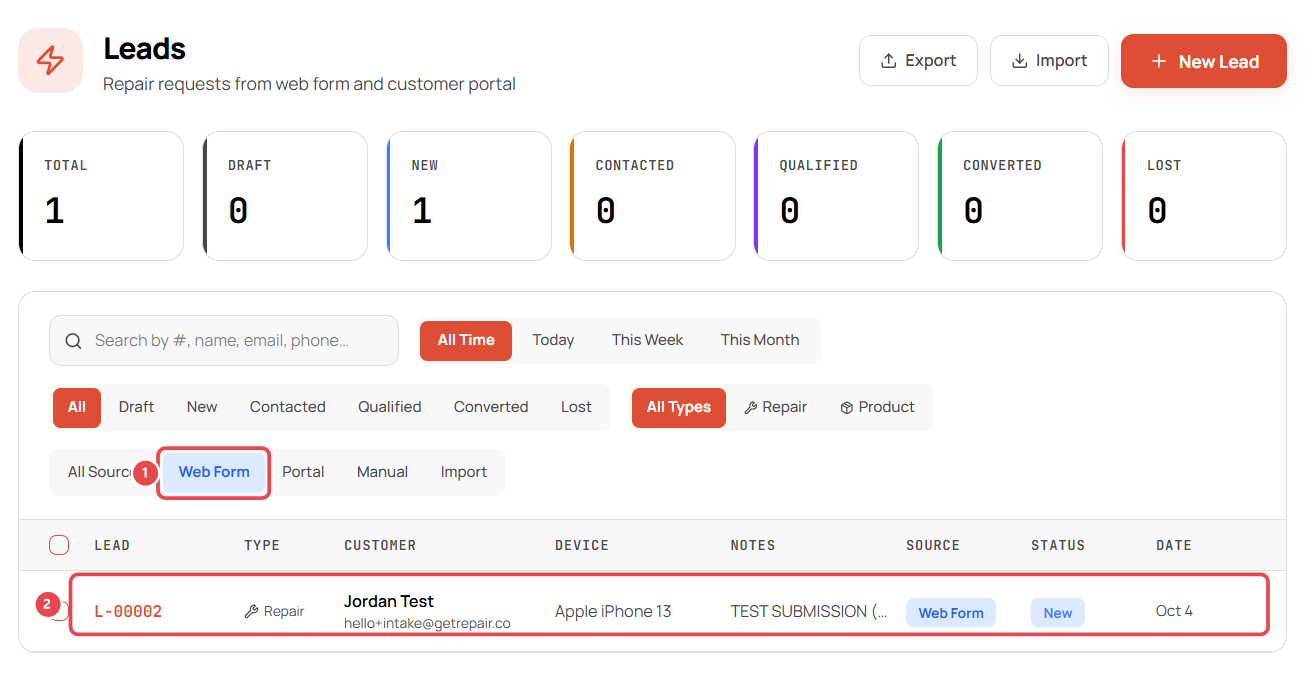
- Each one is also a lead in Leads with status New. Click the Web Form filter ① to see only form requests, then open a lead ② to contact the customer and convert it. See Capture and convert repair leads.
Make sure the Leads module is switched on (Settings → Modules). If it's off, the form still accepts requests, but you won't see the Leads page.
Troubleshooting
I'm not getting emails about new requests. Open the Notifications tab and tick at least one person.
The form shows the wrong colors. Set your colors on the Branding tab. Leaving the logo blank uses your store logo, but the colors stay blue until you change them.
A customer's phone number has the wrong country code. Customers can change the country next to the phone field. Check the number on the lead before you call.