

Get Repair records when staff clock in and out, and calculates commission on their sales and repairs. Set each person's pay once, then review hours and commissions in reports.
Set pay and commission for an employee
- Go to Settings → Team → Employees and click the employee.
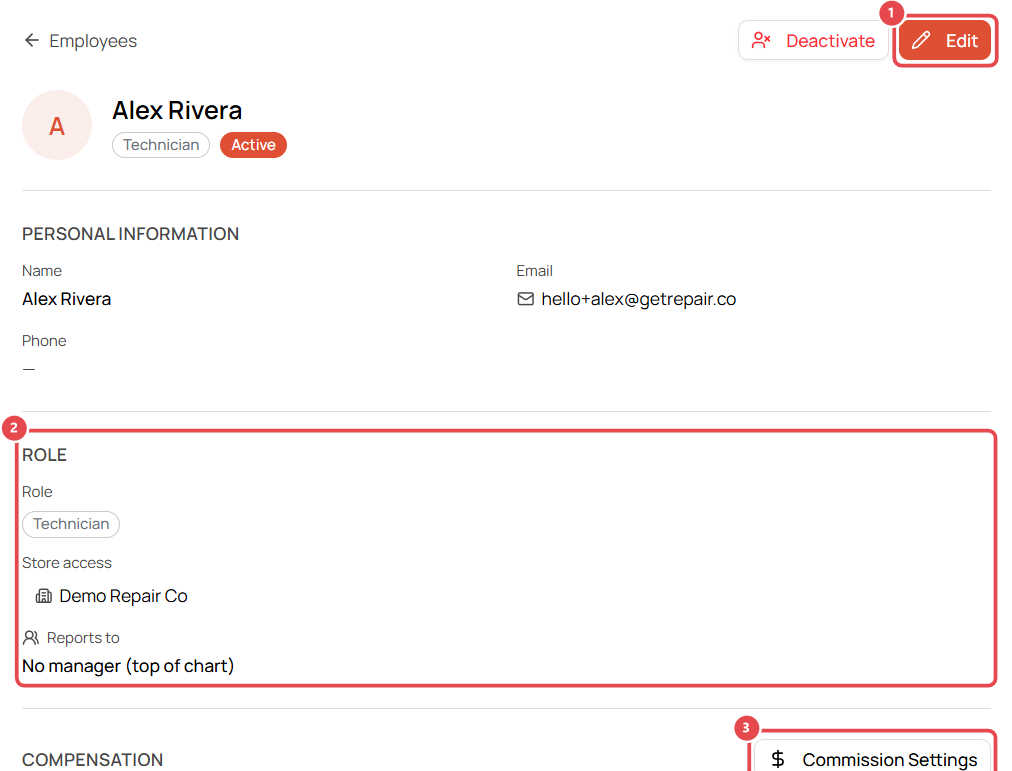
- On their profile you'll see their role and store access ②. Click Edit ① to change their details or pay rate (e.g. $20.00/hr).
- Click Commission Settings ③.
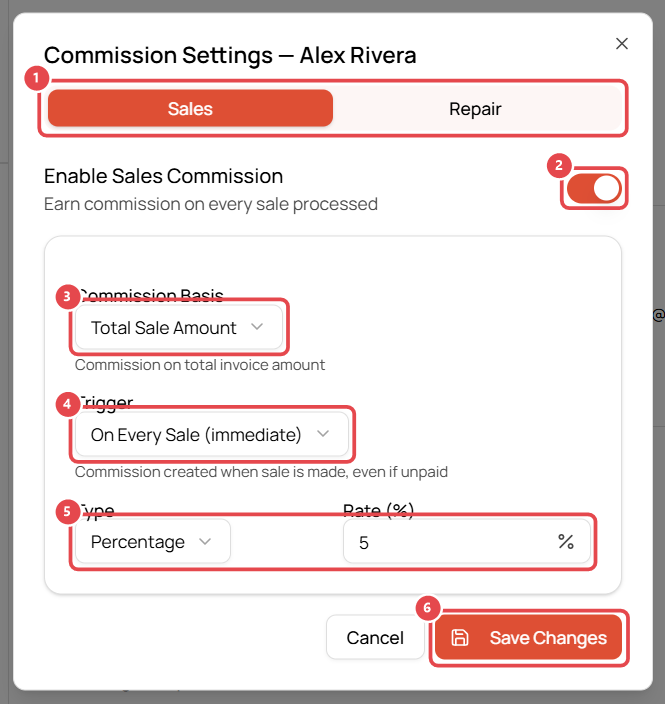
- Choose the Sales or Repair tab ①, then switch on Enable Sales Commission ② (or repair commission).
- Set how it's calculated:
- Commission Basis ③: Total Sale Amount, or Profit (Sale − COGS) to pay on margin rather than revenue.
- Trigger ④: On Every Sale (immediate), or Only When Fully Paid so commission isn't paid on unpaid invoices.
- Type and rate ⑤: Percentage (e.g. 5%) or Fixed Amount per sale.
- Click Save Changes ⑥.
Clock in and out
Staff clock in and out with their own 4-digit Access PIN (set in Profile → Access PIN). Breaks are recorded with their shift.
Review timesheets
Open Timesheets (also under Reports → Team → Timesheets):
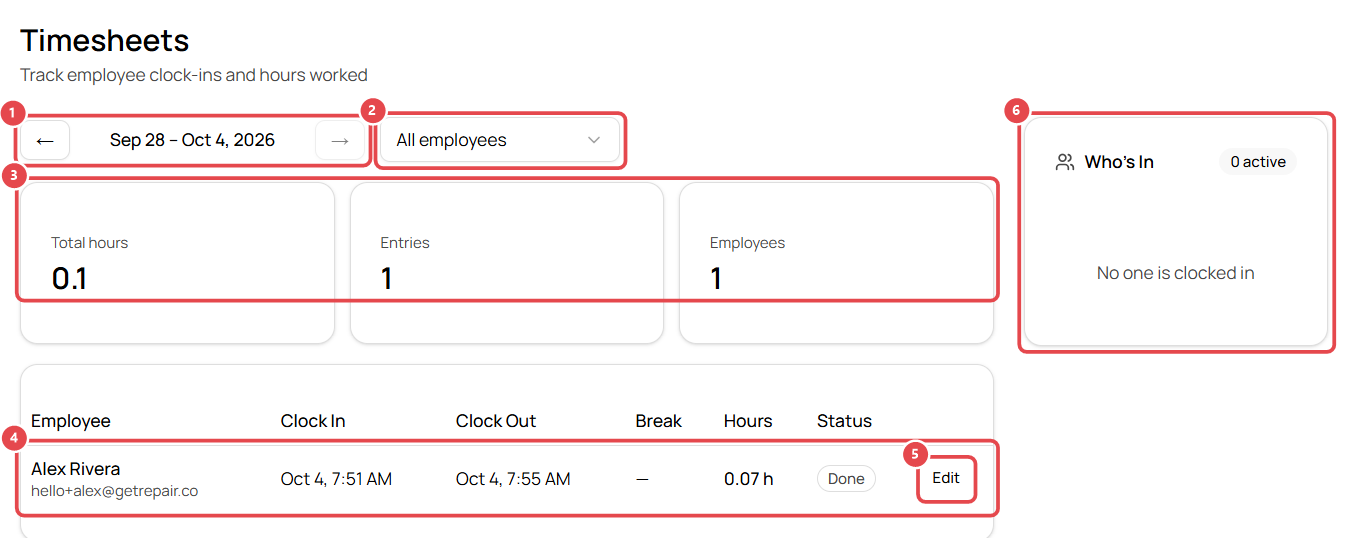
- Pick the week with the arrows ①.
- Filter to one person with All employees ②.
- Check the totals ③: Total hours, Entries and Employees for the period.
- Each shift is a row ④ with clock-in, clock-out, break, hours and status (Active while clocked in, Done once clocked out).
- Click Edit ⑤ to correct a missed or wrong clock-in or clock-out.
- Who's In ⑥ shows who's clocked in right now, with a live timer.
Reports
Under Reports → Team you'll find Employee Report, Employee Performance, Commissions, Timesheets and Timesheet Anomalies (missed clock-outs, unusually long shifts and so on).