

Tasks are your team's to-do list: call a customer back, order a part, chase a supplier. Link a task to a ticket, customer, invoice, estimate or product so everyone has the context.
Create a task
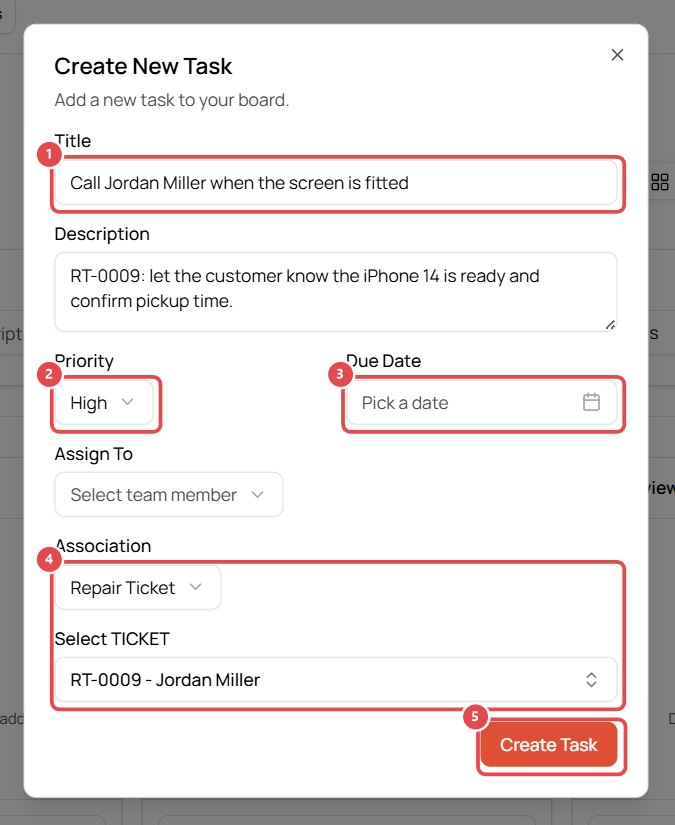
- Go to Tasks and click New Task (or Add Task under a column).
- Enter a clear Title ①, e.g. Call Jordan Miller when the screen is fitted, and a description.
- Set the Priority ② (Low, Medium, High, Urgent) and a Due Date ③.
- Choose who it's Assigned To.
- Under Association ④, link it to a Repair Ticket, Customer, Invoice, Estimate or Inventory Item, then search for the record, e.g. RT-0009.
- Click Create Task ⑤.
Move tasks across the board
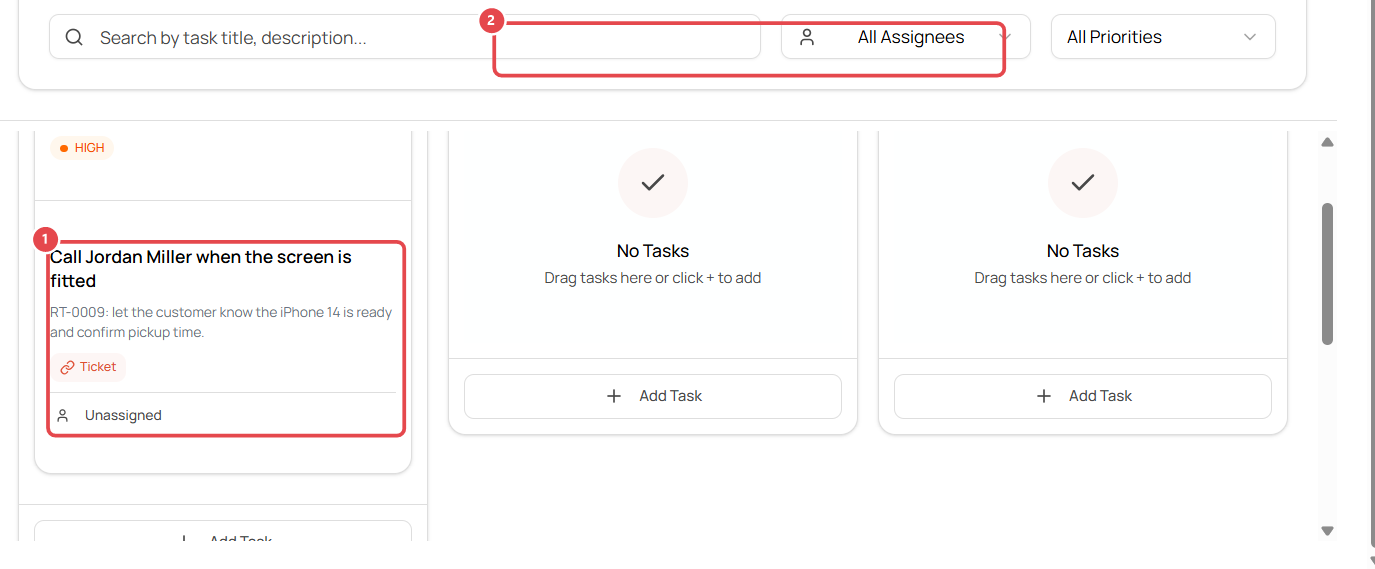
New tasks start in To Do ①. Drag a card into the next column as work progresses ②: To Do → In Progress → Review → Done.
Tips
- Switch between Board and List view at the top.
- Filter by assignee or priority to see your own urgent work.
- Change the columns in Settings → Advanced → Task Board.