A purchase order (PO) records what you ordered from a supplier. When the stock arrives you receive it against the PO, and your inventory updates automatically.
Create the purchase order
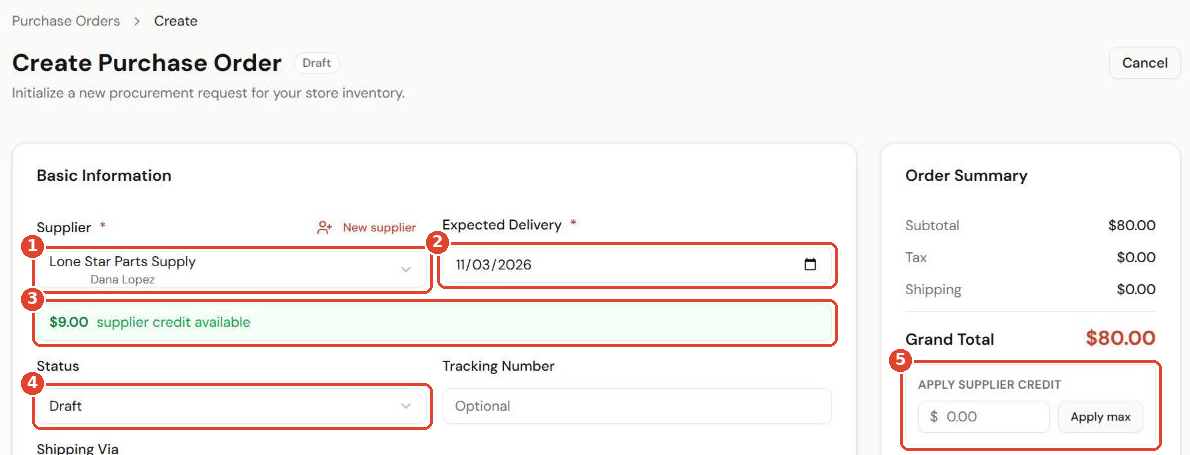
- Go to Purchase Orders and click Create Purchase Order.
- Choose the Supplier ① and the Expected Delivery date ②.
- If the supplier owes you money from a return, you'll see how much supplier credit is available ③.
- Leave Status ④ as Draft while you build the order.
- To use that credit, enter an amount under Apply supplier credit ⑤ or click Apply max.
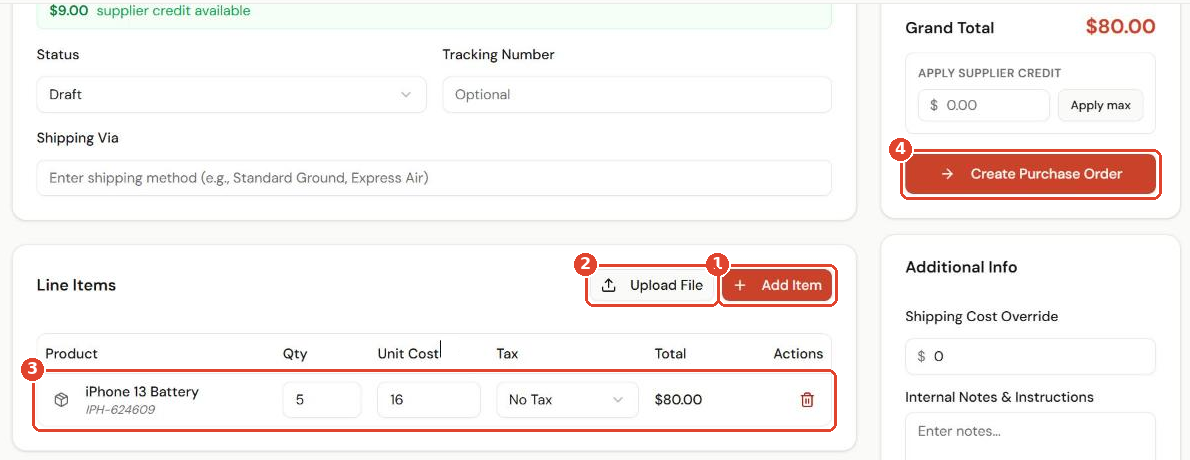
- Under Line Items, click Add Item ① to add products, or Upload File ② to import a list.
- Set the quantity and unit cost for each line ③.
- Click Create Purchase Order ④.
Approve and send it
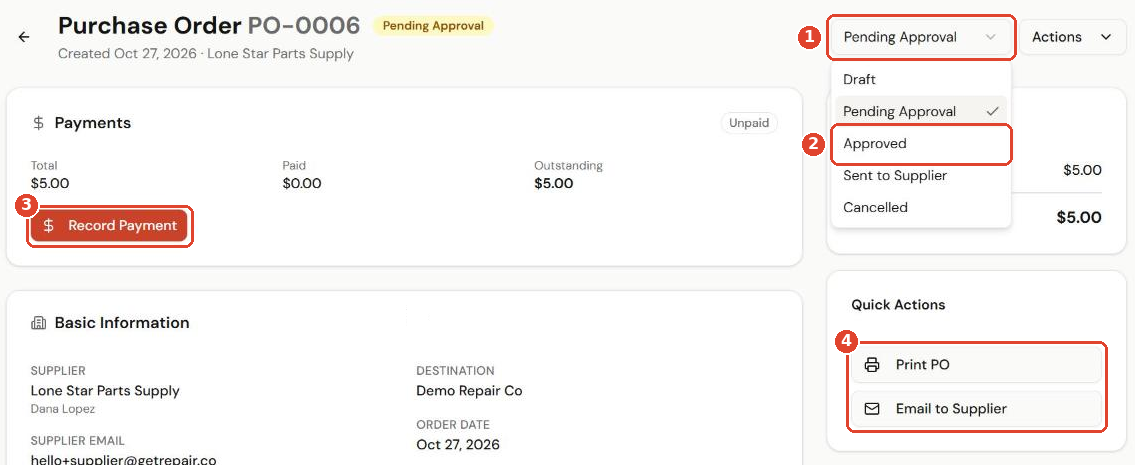
- Open the PO and use the status menu ① to change it to Approved ②.
- Use Print PO or Email to Supplier ④ to send it.
- When you pay the supplier, click Record Payment ③.
Receive the items
- When the delivery arrives, open the PO and choose Receive Items.
- Previously Received ① shows what has already been booked in.
- Enter what arrived today under Receiving Now ②. You can receive part of an order now and the rest later.
- Click Confirm Receipt ③.
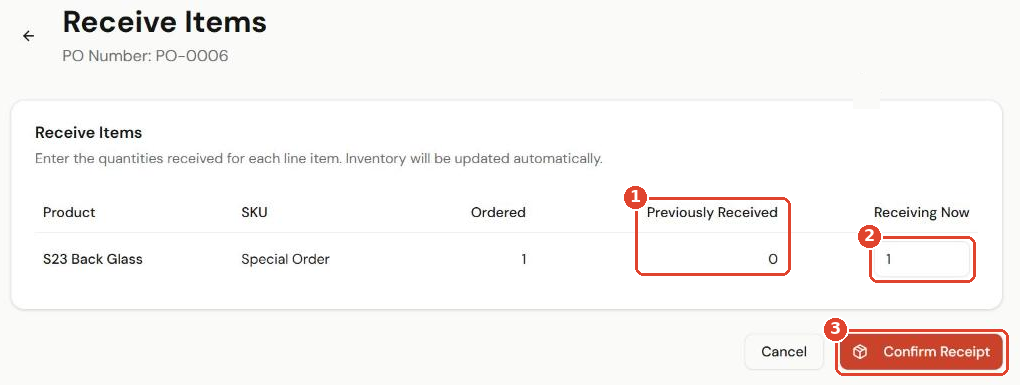
The stock is added to inventory straight away. Parts ordered for a specific repair (special orders) are marked Received on the ticket too.
Record a payment
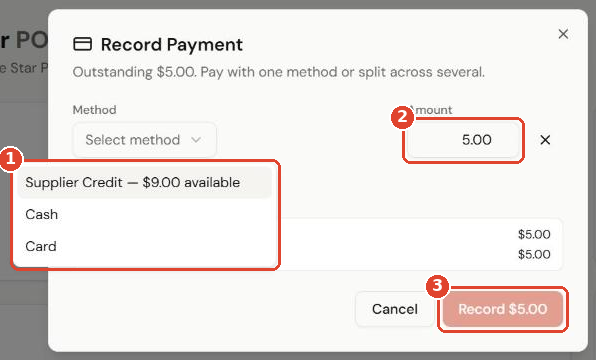
- Click Record Payment.
- Choose the Method ①: Supplier Credit (when available), Cash or Card.
- Enter the Amount ②. You can split the payment across several methods.
- Click Record ③.