

Use a special order when a repair needs a part you don't keep in stock. GetRepair adds it to the ticket and creates the purchase order for you when you save.
Add the special order
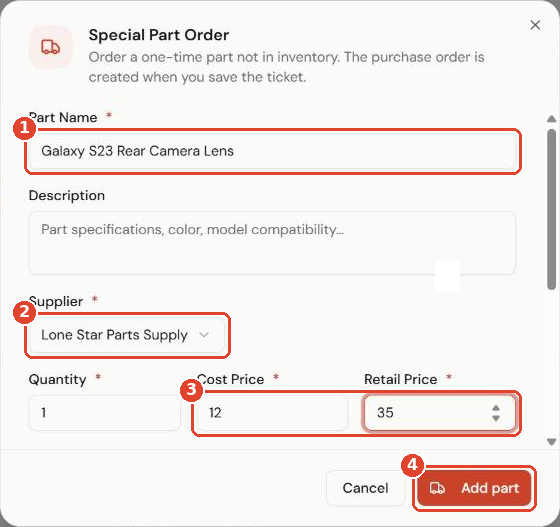
- On the ticket or estimate, go to Parts and click Special Part Order.
- Enter the Part Name ①.
- Choose the Supplier ②.
- Enter the quantity, Cost Price and Retail Price ③.
- Click Add part ④.
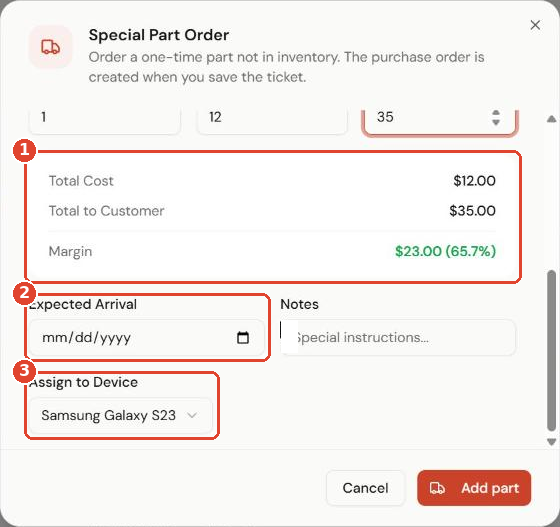
Scroll down in the same window to check:
- the cost, price to the customer and your Margin ①
- the Expected Arrival date ②
- which device the part is for ③ (on multi-device tickets)
Track it on the ticket
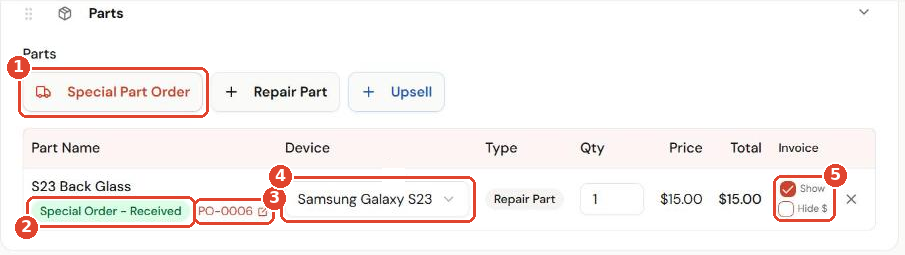
Save the ticket. The part you added with Special Part Order ① shows in the parts table with:
- its status ②, for example Special Order – Received once it has arrived
- a link to the purchase order ③, such as PO-0006
- the device it belongs to ④
- Show / Hide $ ⑤ to control whether the price prints for the customer
When the part arrives, receive it on the purchase order. The status on the ticket updates automatically. See Create and receive a purchase order.