

Running more than one location? Move stock between them with a transfer instead of adjusting counts by hand. The sending store's stock goes down and the receiving store's goes up.
You need: at least two stores in your organization.
Send a transfer
- In the store that's sending the stock, go to Inventory → Transfers and click Create Transfer.
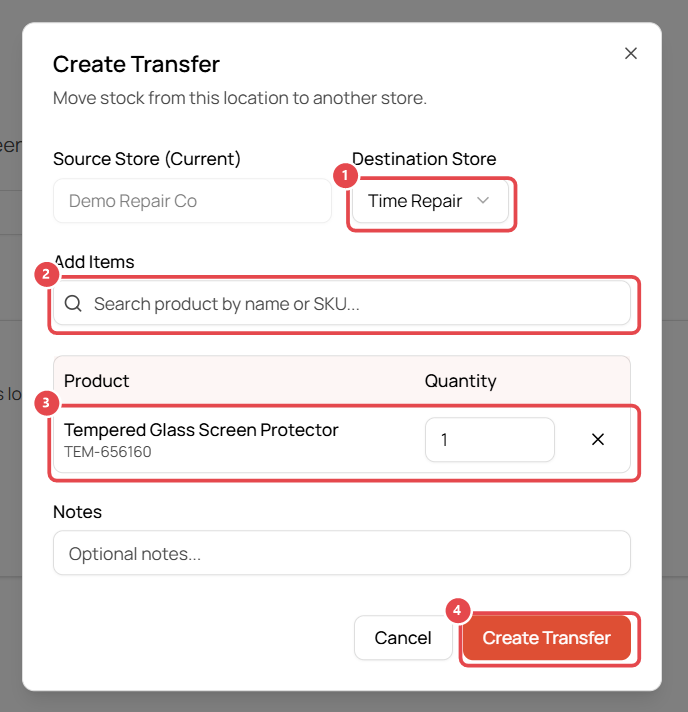
- Source Store is the store you're in. Choose the Destination Store ①.
- Under Add Items, search by product name or SKU ② and click the product. You'll see how many are available.
- Set the Quantity for each item ③. Remove a line with ×.
- Add optional Notes, e.g. a courier tracking number.
- Click Create Transfer ④.
Track transfers
The Transfers page has two tabs:
- Incoming: stock being sent to this store.
- Outgoing: stock this store has sent.
Good to know
- You can require a PIN for creating transfers. See Require a PIN for sensitive actions.
- Products must exist in both stores' catalogs. Use Copy from existing store when creating a store to start with the same products.