

The status shows where a repair is: waiting, being worked on, waiting for parts, ready for pickup. Each change is recorded on the ticket, and the customer gets an automatic email, so fewer customers call to ask "is it ready yet?"
Who can do this: Anyone with access to Repair Tickets. Time needed: A few seconds.
Steps
- Open the ticket from Repair Tickets.
- In Repair Details, click the current Status ①.
- Choose the new status ②, e.g. In Progress.
- Click Save Changes ③.
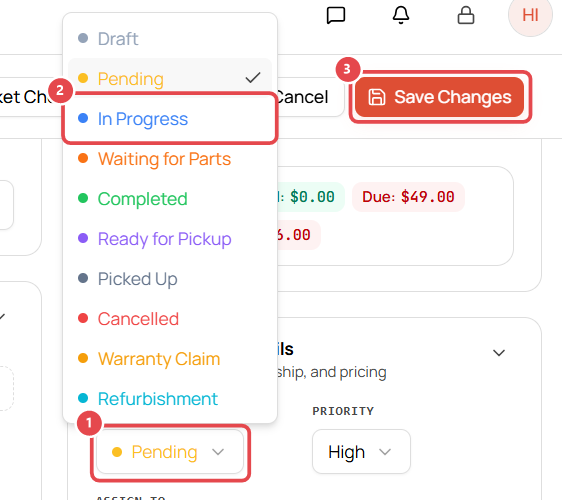
The default statuses
| Status | Group | Use it when… |
|---|---|---|
| Draft | Open | You've started a ticket but haven't confirmed it with the customer. |
| Pending | Open | The device is checked in and waiting to be worked on (the default for new tickets). |
| In Progress | Open | A technician is working on it. |
| Waiting for Parts | On Hold | You're waiting for a part to arrive. |
| Completed | Closed | The repair is finished. |
| Ready for Pickup | On Hold | The device is ready and the customer has been told. |
| Picked Up | Closed | The customer has collected the device. |
| Cancelled | Closed | The job was cancelled. |
| Warranty Claim | Open | The customer brought the device back under your repair warranty. |
| Refurbishment | Open | An in-house job, e.g. refurbishing a trade-in. |
You can rename statuses, change their colors or add your own in Settings → Repairs → Ticket Statuses.
What the customer receives
When a ticket has a customer with an email address:
- On save: a "Repair ticket created" email with the ticket number, device, issue and estimated completion date.
- On every status change: a "Status update" email with the new status.
Both emails include your store name and phone number. Every email shows under Notes & Activity → Emails on the ticket, with its delivery status.
See the ticket's history
Scroll to Notes & Activity on the ticket to see who changed what and when, including status changes (e.g. Pending → In Progress), emails sent, and internal and diagnostic notes.
Troubleshooting
The activity list didn't update after I saved. Refresh the page. The change is saved and appears after a refresh.