An estimate lets the customer see the price before you start work. You build it in GetRepair, send it by email, and the customer approves it online with a signature. Their answer appears on the estimate straight away.
Create the estimate
- Go to Estimates and click New Estimate ①.
- Choose Repair Estimate ② for a device repair, or Inventory Estimate ③ for a quote on products only.

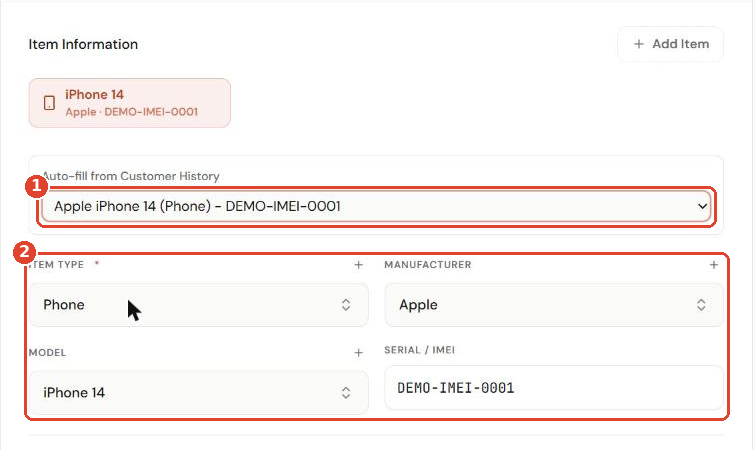
- Pick the customer, then add the device. If the customer has been in before, choose it from Auto-fill from Customer History ① and the device details fill in for you ②.
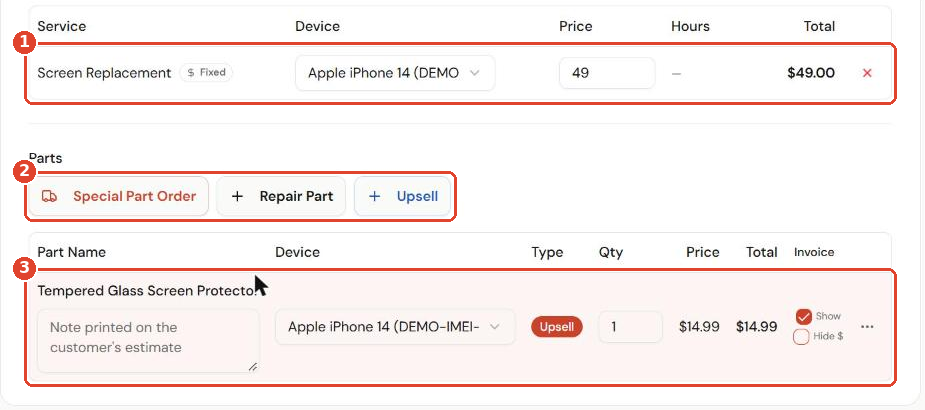
- Add the Service ① and its price.
- Add any parts with Repair Part, Upsell or Special Part Order ②. Each part appears in the parts table ③. Use the note under a part for anything the customer should read, and Show / Hide $ to control whether its price prints on the estimate.
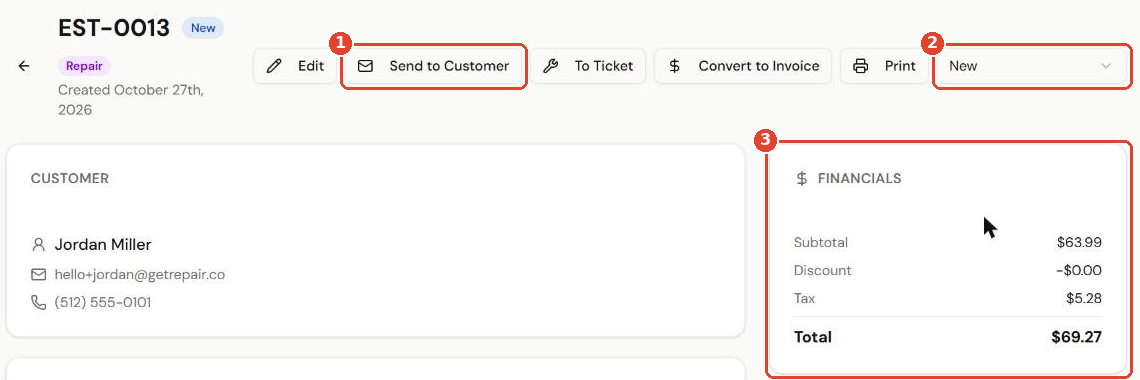
- Save the estimate. It gets a number such as EST-0013 and starts as New.
Send it to the customer
- Open the estimate and click Send to Customer ①.
- The status ② changes so you can see it is waiting on the customer. The Financials panel ③ shows the subtotal, discount, tax and total they will see.
The customer gets an email with the estimate summary ①, the Approve, Decline and Request changes buttons ②, and how long the link is valid ③.
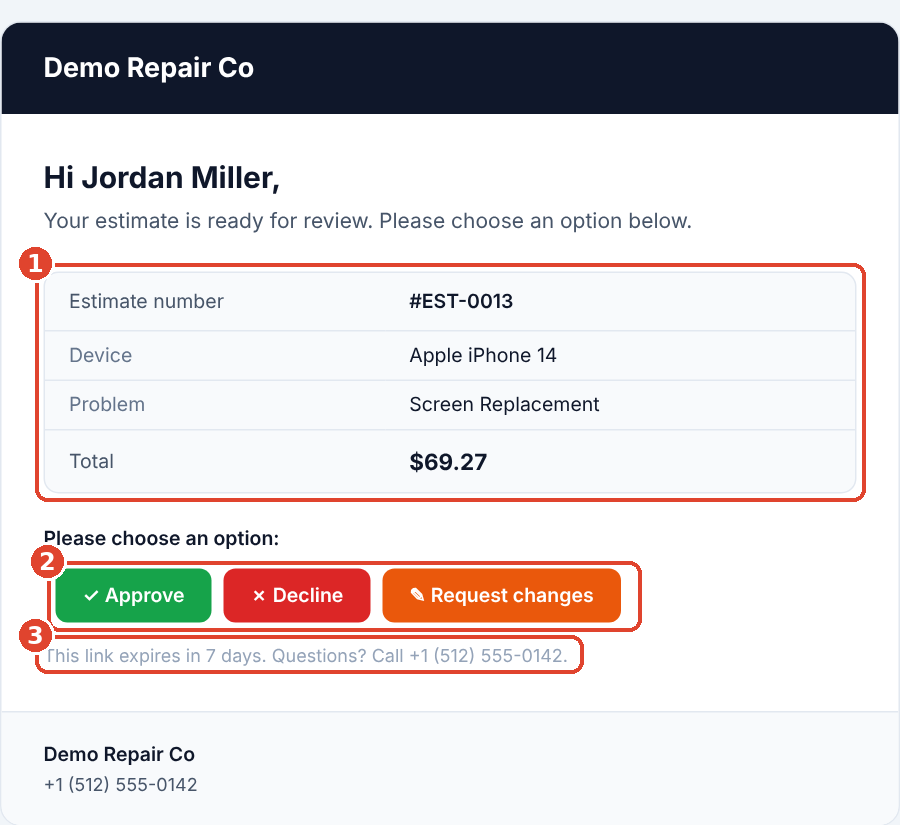
Tip: Each link is valid for 7 days. If you send the estimate again, a new link goes out and the previous one stops working, so the customer should always use the latest email.
What the customer sees
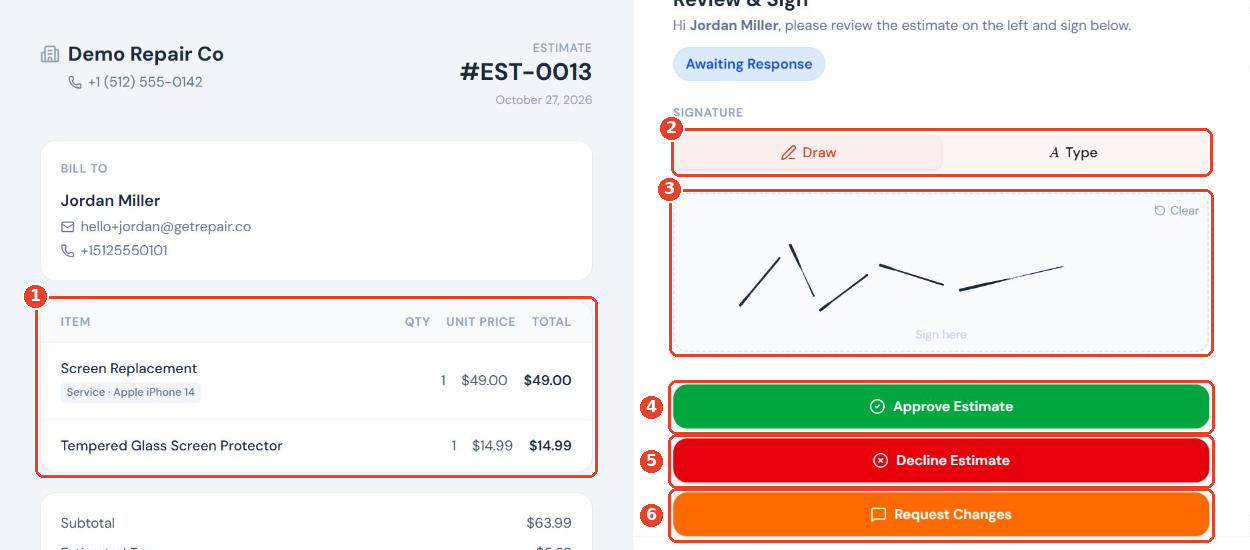
The link opens a Review & Sign page with your shop details and the line items ①. The customer:
- Chooses Draw or Type ② to sign.
- Signs in the box ③.
- Clicks Approve Estimate ④, Decline Estimate ⑤ or Request Changes ⑥.
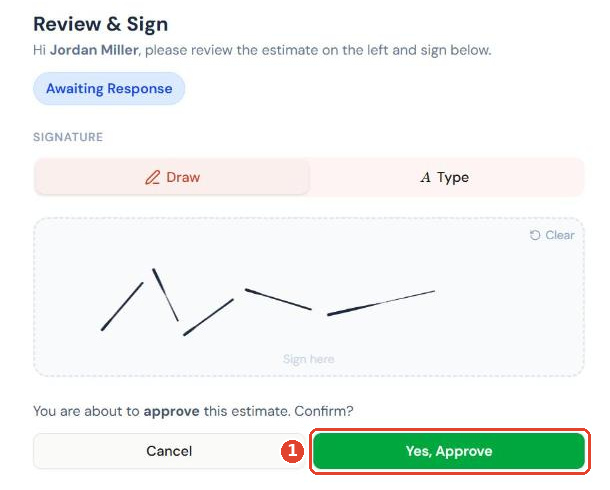
When they approve, they confirm once more with Yes, Approve ①.
See the customer's answer
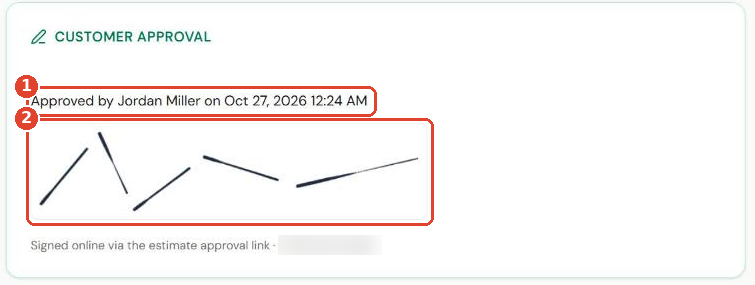
Open the estimate. The Customer Approval card shows who approved and when ①, with their signature ②. Use To Ticket or Convert to Invoice to carry on.
If the customer declines or requests changes, the estimate status updates and their message appears on the estimate. Edit it and click Send to Customer again.
Add your terms (optional)
You can ask customers to accept your repair terms before they sign.
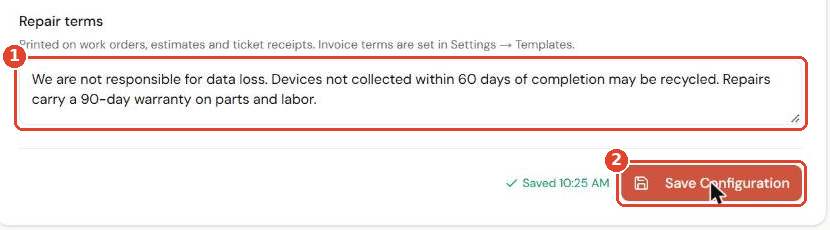
- Go to Settings → Repair Configuration and fill in Repair terms ①.
- Click Save Configuration ②.
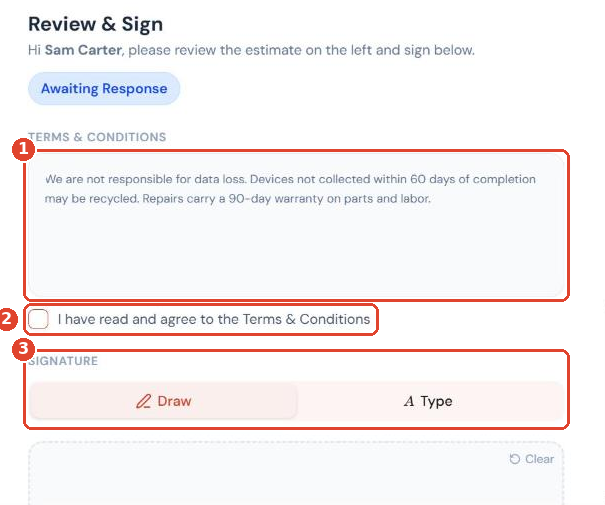
The terms then appear on the approval page ①. The customer ticks I have read and agree to the Terms & Conditions ② before they can sign ③.