

Cash register shifts track every dollar in the drawer. You count the float when the shift opens, GetRepair tracks cash sales, cash in, cash out and payouts, and at close you count the drawer again and compare it with what's expected.
Set up a register
- Go to Settings → Cash Register and open the Registers tab.
- Add a register, or click one to edit it.
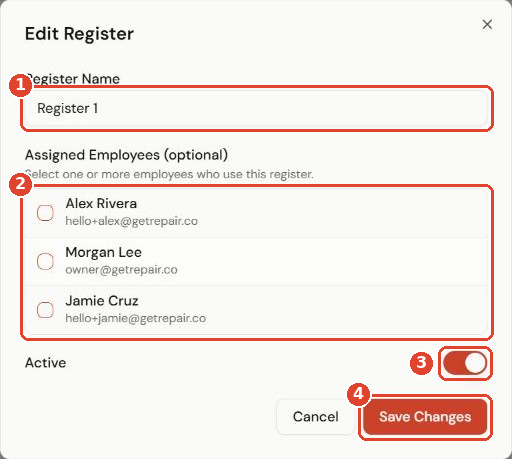
- Give it a Register Name ①, such as Front Counter.
- Under Assigned Employees ②, tick the staff who use it. Leave it empty to let anyone use it.
- Turn on Active ③ and click Save Changes ④.
Choose how shifts work
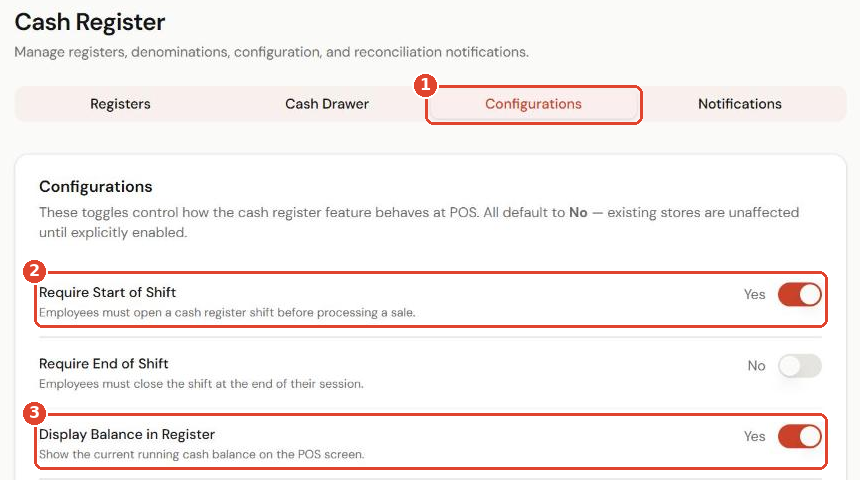
Open the Configurations tab ①. Every setting is off by default, so nothing changes for your store until you turn it on.
- Require Start of Shift ②: staff must open a shift before they can make a sale.
- Require End of Shift: staff must close their shift at the end of their session.
- Display Balance in Register ③: shows the running cash balance on the POS screen.
Open a shift
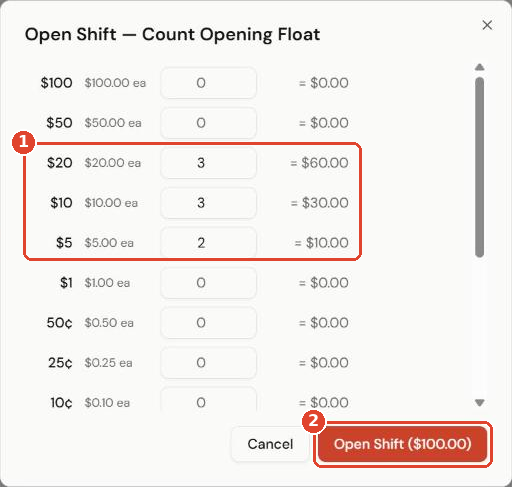
- Go to POS and click Open Shift.
- Count the opening float by denomination ①. The total updates as you type.
- Click Open Shift ②.
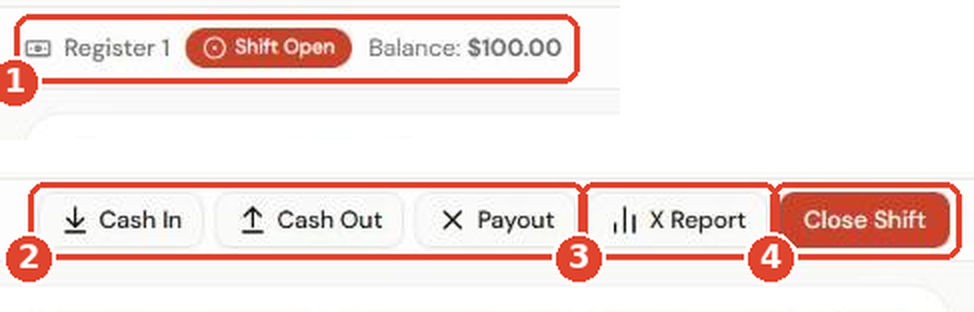
The shift bar at the top of the POS shows the register, that the shift is open, and the current balance ①. From there you can:
- Record Cash In, Cash Out or a Payout ② (for example, petty cash for supplies).
- View an X Report ③, a mid-shift snapshot that doesn't close anything.
- Close Shift ④.
Close the shift
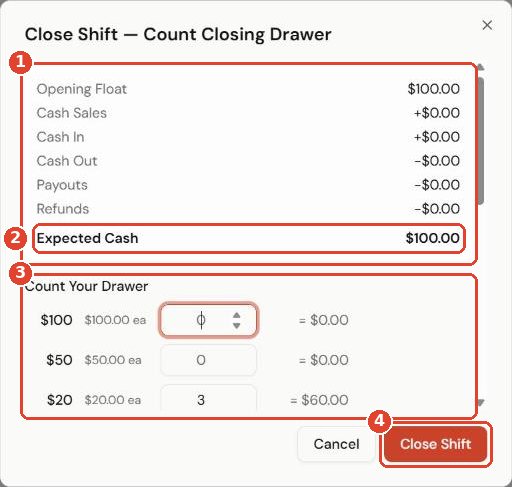
- Click Close Shift.
- The summary ① shows the opening float, cash sales, cash in, cash out, payouts and refunds.
- Expected Cash ② is what should be in the drawer.
- Count the drawer by denomination ③.
- Click Close Shift ④.
Z report
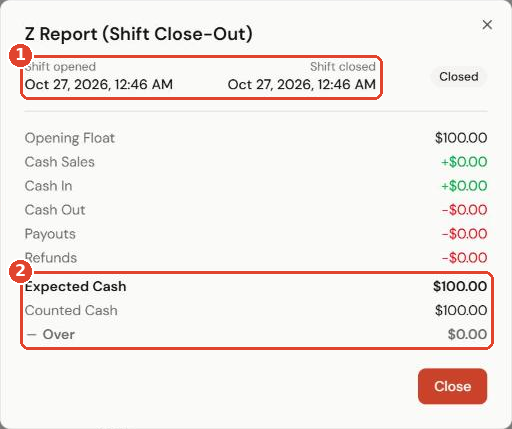
When the shift closes, you get the Z Report. It shows when the shift opened and closed ①, and compares Expected Cash with Counted Cash ②. Any difference shows as over or short.
Tip: Use the Notifications tab to email managers a copy of each Z report.