

The POS handles walk-in sales and repair payments. You can take one payment method or split the total across several.
Build the cart
- Go to POS.
- Scan a barcode or search for a product ①. It's added to the cart ②. Change the quantity there if you need to.
- Choose the Customer ③ (optional for walk-in sales).
- Click Add Order Discount ④ if you're giving a discount.
- Click Checkout ⑤.
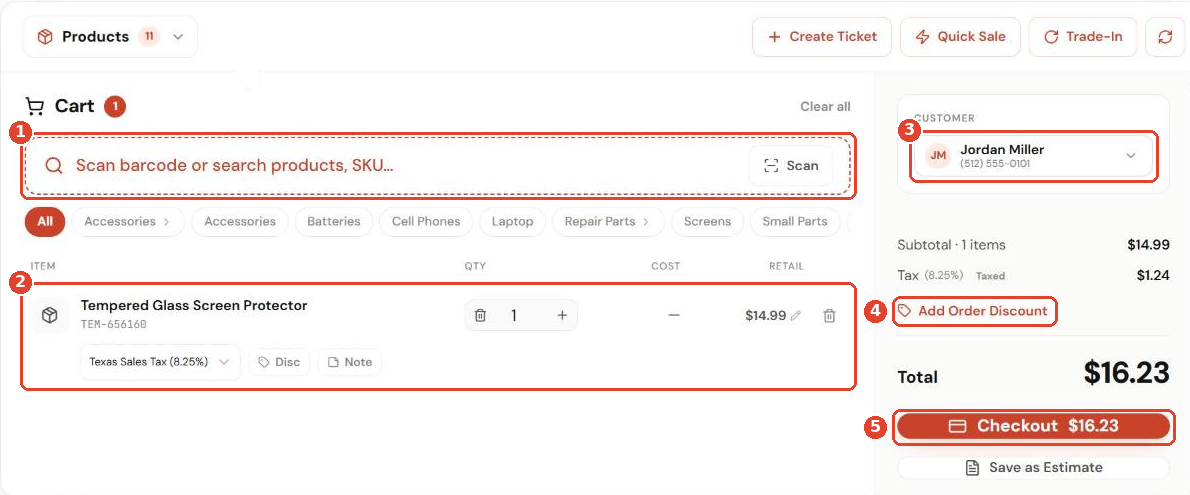
Tip: Save as Estimate turns the cart into an estimate instead of a sale.
Take the payment
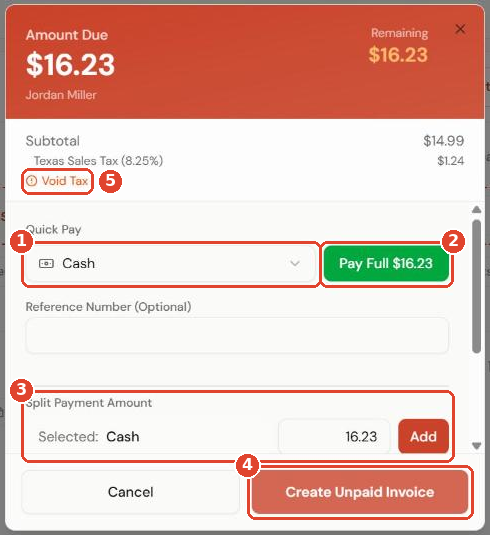
- Choose a method under Quick Pay ①, such as Cash or Card.
- Click Pay Full ② to take the whole amount in one go.
To split the payment, enter part of the total in Split Payment Amount ③, click Add, then pay the rest with another method.
If the customer will pay later, click Create Unpaid Invoice ④. Void Tax ⑤ removes tax from this sale.
Cash and change
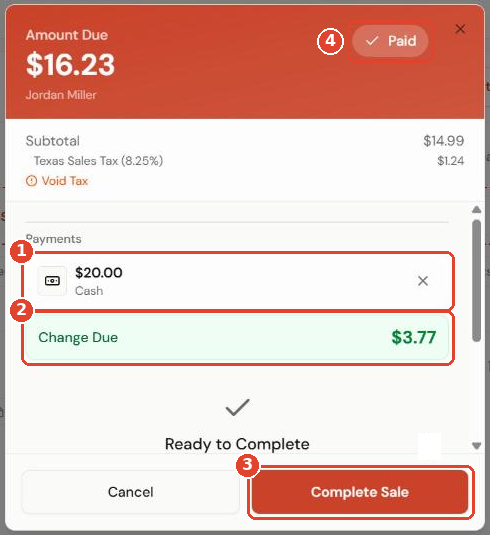
When you take cash, enter the amount the customer handed over. The payments list shows it ①, and Change Due ② shows what to give back. When the badge shows Paid ④, click Complete Sale ③.
After the sale
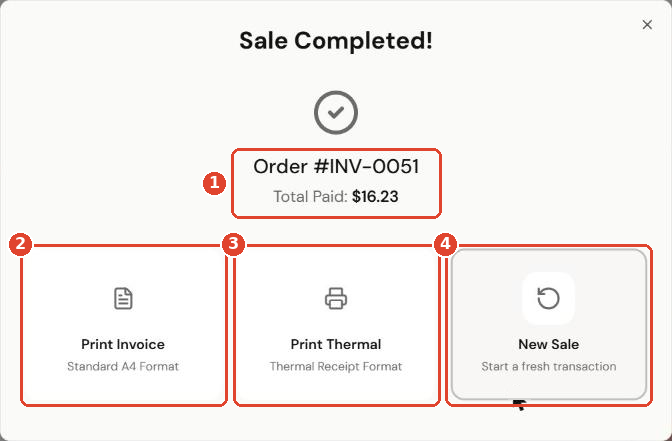
The Sale Completed screen shows the invoice number and total paid ①. From here you can:
- Print Invoice ② (A4)
- Print Thermal ③ receipt
- Start a New Sale ④
Store credit
If a customer has store credit, Store Credit appears as a payment method at checkout. You can use it for the whole sale or split it with another method. See Give and use store credit.