You start refunds and exchanges from the original invoice, so the history stays linked.
Find the invoice
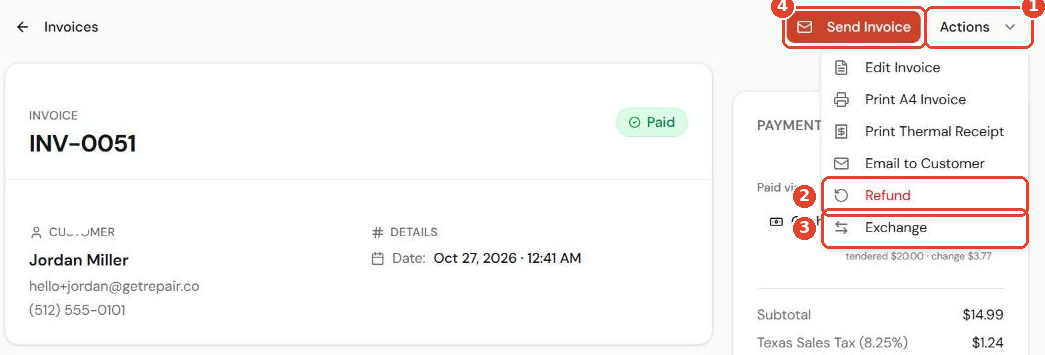
- Go to Invoices and open the paid invoice.
- Click Actions ①, then choose Refund ② or Exchange ③.
Tip: Refunds can be protected with a manager PIN. See PIN-gating sensitive actions.
Refund items
- Tick the items to refund ①. Change the Refund $ amount ② for a partial refund.
- Choose the Refund Method ③, such as Cash or Card.
- Choose what happens to the items ④:
- Restock items to inventory puts them back on the shelf.
- Mark returned items faulty sends them to Faulty Items, ready for a supplier return.
- Add a reason under Notes ⑤.
- Check the total ⑥ and confirm the refund.
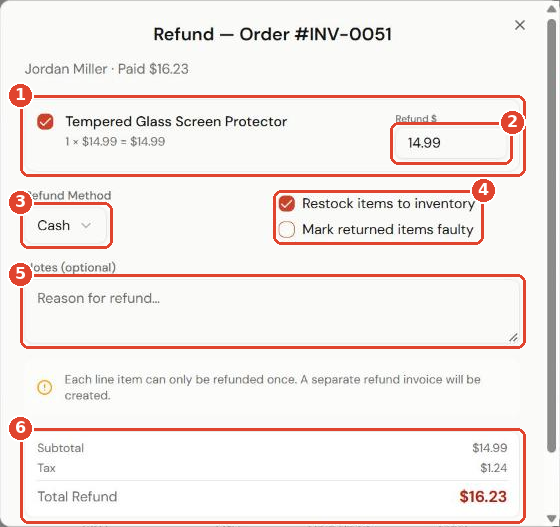
Each line can only be refunded once. GetRepair creates a separate refund invoice, linked to the original.
Exchange items
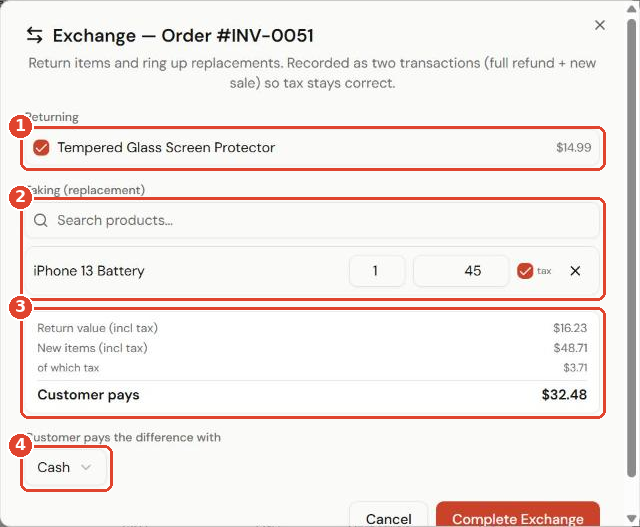
An exchange returns items and sells replacements in one step. It is saved as two transactions (a full refund and a new sale), so tax stays correct.
- Under Returning, tick the items coming back ①.
- Under Taking (replacement), search for and add the new items ②.
- Check the summary ③: return value, new items and what the customer pays (or gets back).
- Choose how the customer pays the difference ④.
- Click Complete Exchange.