

Each physical location you run is a store in Get Repair. A store has its own tickets, inventory, sales and settings. You can add as many stores as you need under one organization.
Who can do this: Organization owners and admins. Time needed: About 2 minutes.
Before you start
Have your store's address and phone number ready. You'll set the currency and timezone right after (see Set your currency, number format and timezone).
Steps
1. Open the Stores page
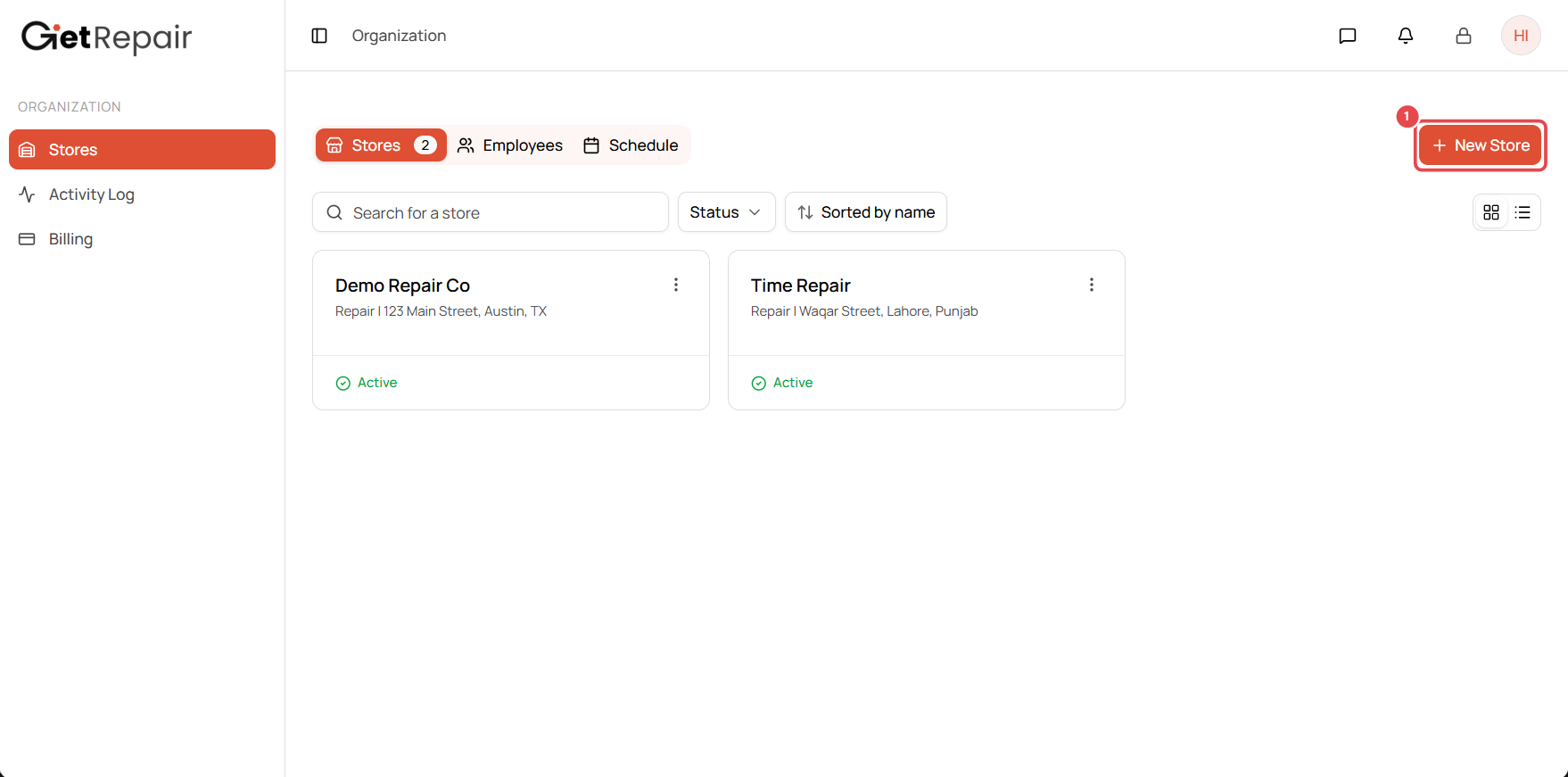
From the Organization view, select Stores in the left menu, then click New Store in the top-right corner ①.
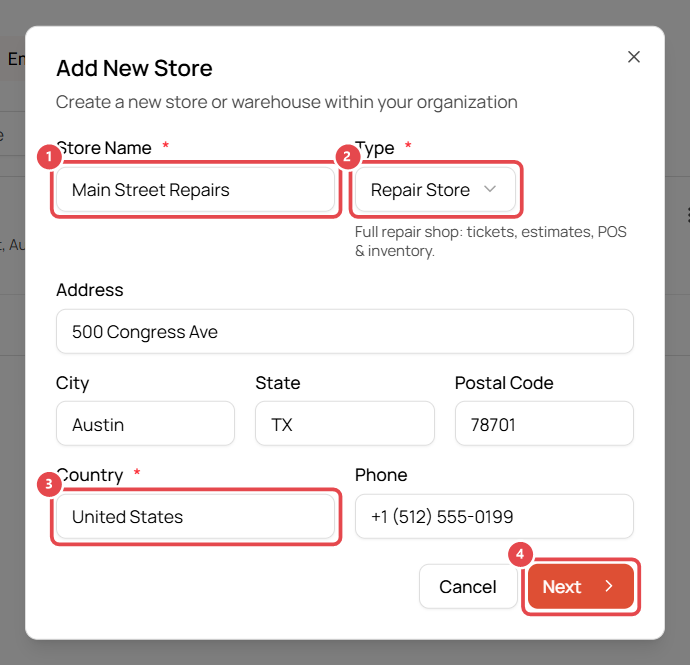
2. Enter the store details
- Store Name ①: the name your customers know, e.g. Main Street Repairs. It appears on receipts, emails and the customer portal.
- Type ②: choose Repair Store for a full repair shop (tickets, estimates, POS and inventory) or Retail Store for sales only.
- Fill in the address. Country ③ is required.
- Add the store phone number. Customers see it in their ticket emails.
- Click Next ④.
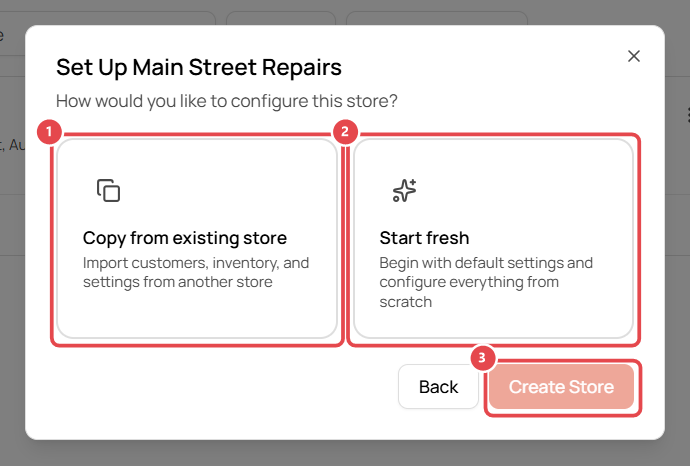
3. Choose how to set up the store
- Copy from existing store ①: pick one of your other stores and choose what to copy: customers, inventory, payment methods, currency and formatting, tax settings, language, repair problems, device types and device brands. Best when you're opening a second location that works the same way.
- Start fresh ②: begin with default settings. Best for your first store, or a location that works differently.
Click Create Store ③. The new store appears on your Stores page and opens on its dashboard.
What to do next
New stores start with default settings. Before your first ticket, we recommend you:
- Set your currency, number format and timezone
- Set up repair services, device types and the pre-repair checklist
- Add your sales tax (see Tax Setup)
- Add your parts and products
Troubleshooting
I don't see the New Store button. Only organization owners and admins can create stores. Ask your account owner to change your role.
I picked the wrong setup option. You can change any setting later from Settings inside the store, so there's no need to recreate it.