

Plan who's working when, publish the week so staff can see it, then compare the plan with what actually happened.
You need: at least one employee with access to the store (see Invite your team and assign roles).
1. Add shifts
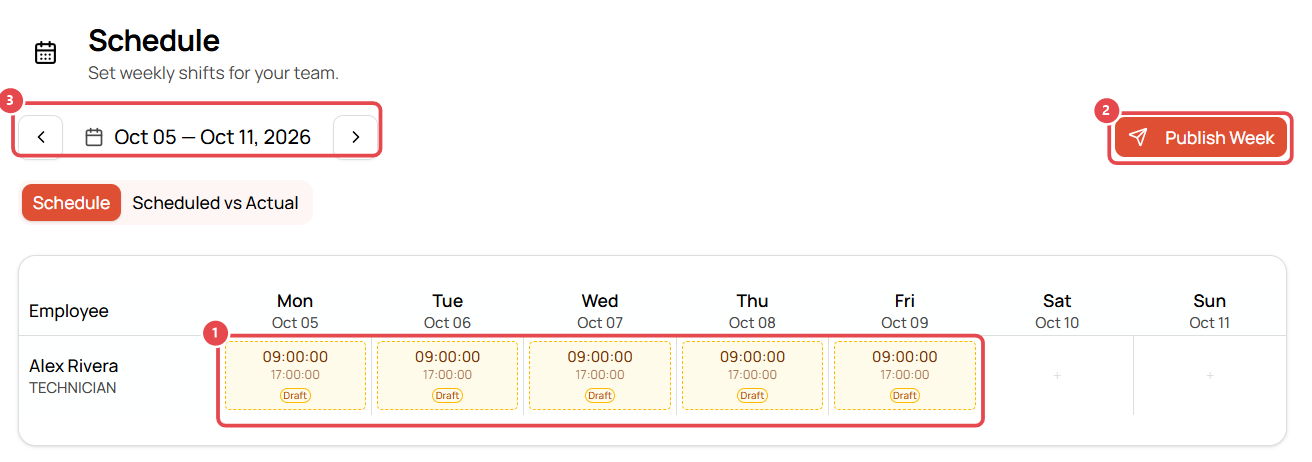
- Go to Schedule. Use the arrows next to the dates to pick the week.
- Click an empty cell in an employee's row to add a shift for that day.
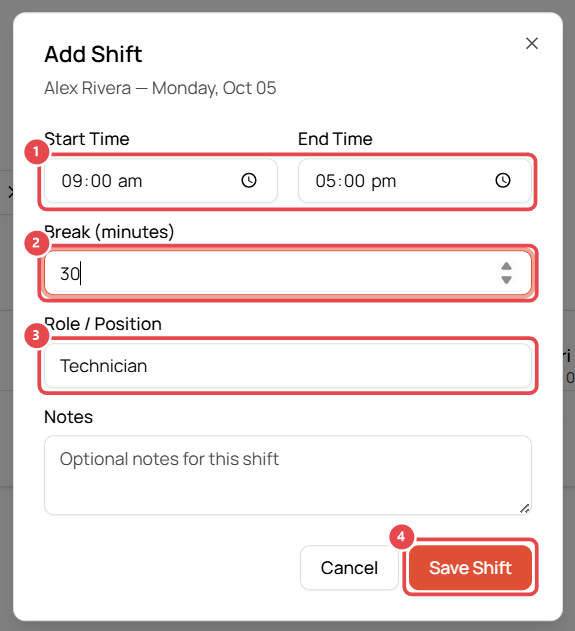
- In Add Shift:
- Set the Start Time and End Time ①.
- Enter the Break in minutes ②.
- Check the Role / Position ③ (filled in from the employee's role).
- Add optional Notes, then click Save Shift ④.
Repeat for each day. New shifts appear as Draft ① (dashed outline), visible only to managers.
2. Publish the week
When the week looks right, click Publish Week ②. Shifts turn green, and your team can see their schedule. Use the arrows ③ to move between weeks.

3. Compare scheduled vs actual
Switch to the Scheduled vs Actual tab to see planned shifts next to the hours each person actually clocked. It's a quick way to spot late starts, early finishes and unplanned overtime. Clock-ins come from timesheets (see Track hours and commissions).
Tips
- To reuse a pattern, open Settings → Team → Schedules and click Copy last week.
- Edit or delete a shift by clicking it.