

When a customer brings back a device you repaired, GetRepair checks whether the repair is still under warranty.
Spot a device under warranty
Start a new ticket for the customer and choose the device. If it's still covered, a banner ① shows the original ticket, the repair, when it was picked up and the date cover ends.
- Click Create warranty claim ② to open a claim.
- Click Not a warranty job ③ if the new problem isn't covered, and carry on with a normal ticket.

The warranty claim ticket
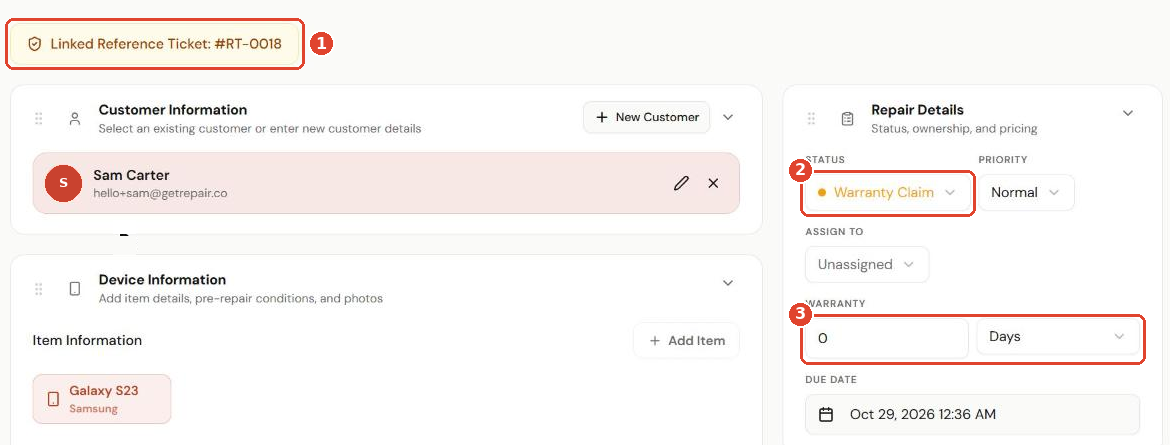
The claim ticket is set up for you:
- Linked Reference Ticket ① links back to the original repair.
- The status is Warranty Claim ②.
- Warranty ③ is set to 0 days, because the claim doesn't start a new warranty.
Add any parts and notes as normal, then save.
Tip: Set the default warranty for each repair service so the cover is calculated automatically. See Set up repair services, device types and the pre-repair checklist.